Program Usage Guide
Select program market
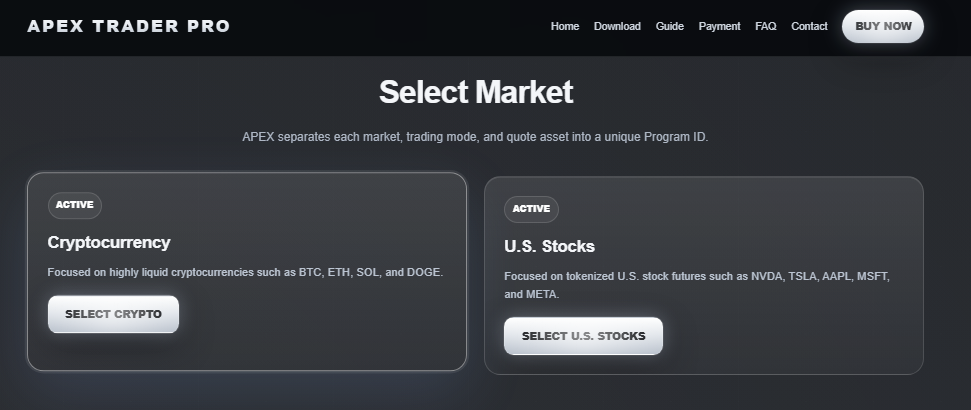
Select stocks to invest in U.S. equities or crypto before choosing a program
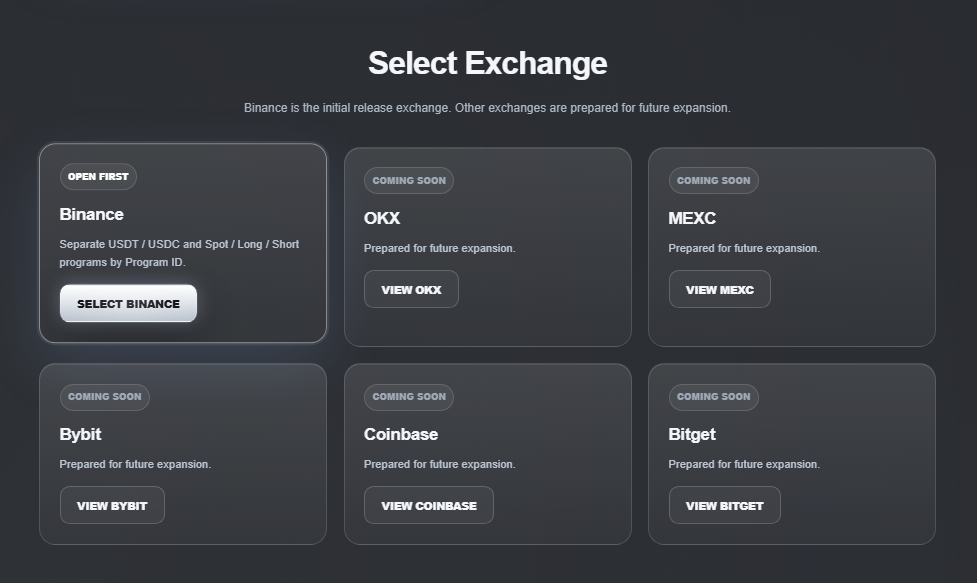
Select all, recheck the amount at the program exchange
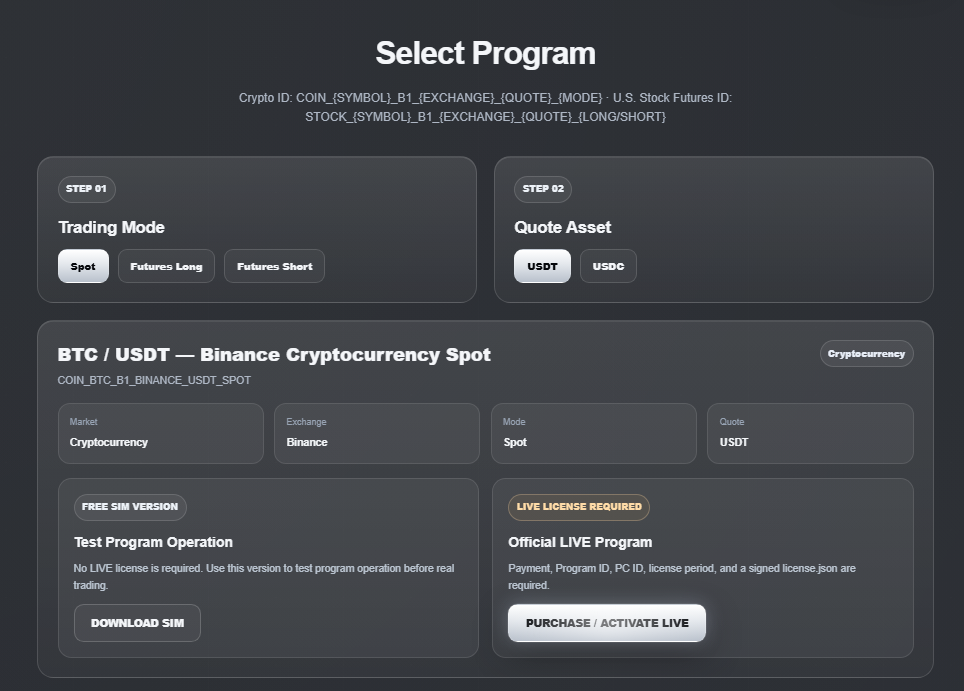
Please double-check the program you want to trade, the exchange, and whether you want to trade long, short, or spot positions, and whether you want to trade USDT or USDC
Free download of the heart verification program desired by users
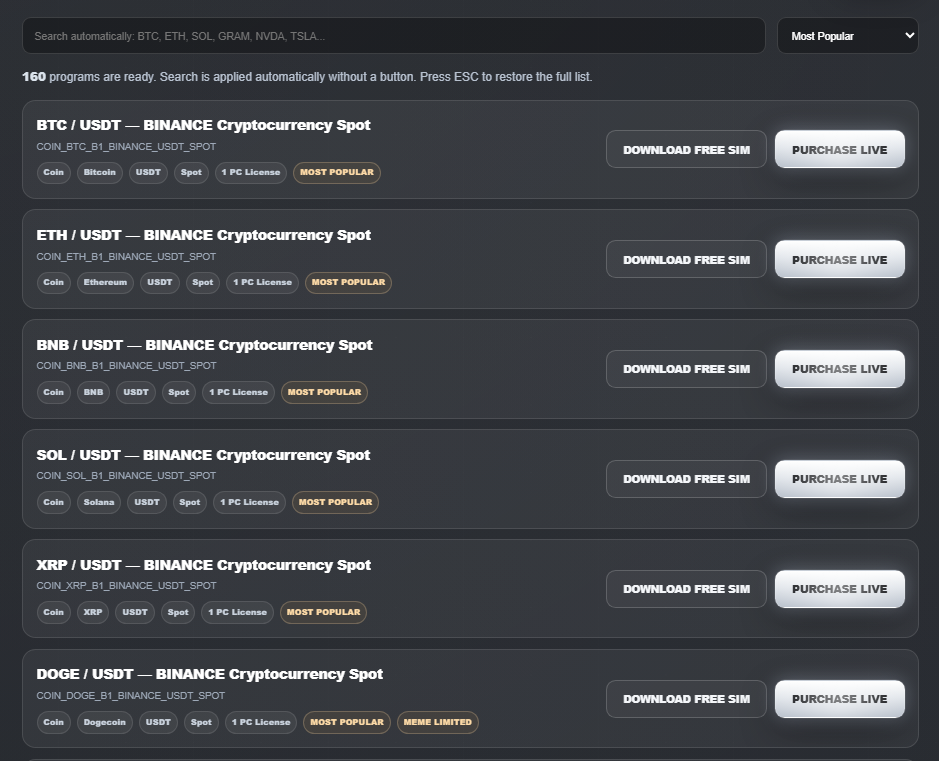
Please select the program that the user will use And first, try verifying and executing the virtual investment linked to Sim’s actual investment
Download Sim program to use
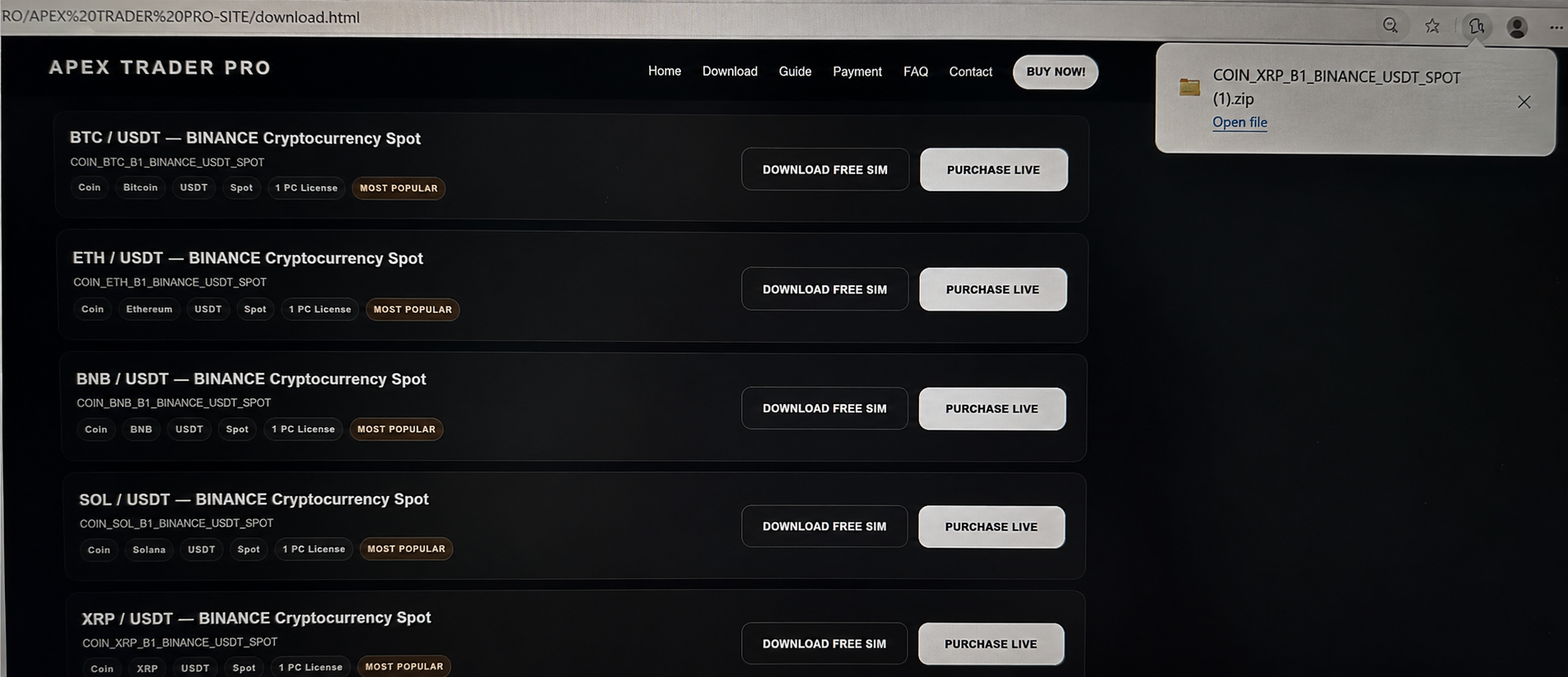
The file on the PC download page is issued automatically After extracting the file, place it in the desired location and use it
Extract the downloaded file
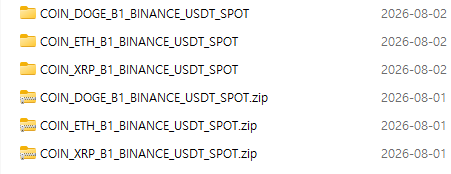
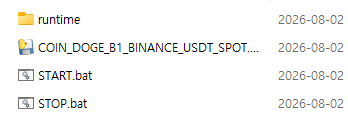
Place the downloaded file in the desired location and extract it
Status window and control buttons
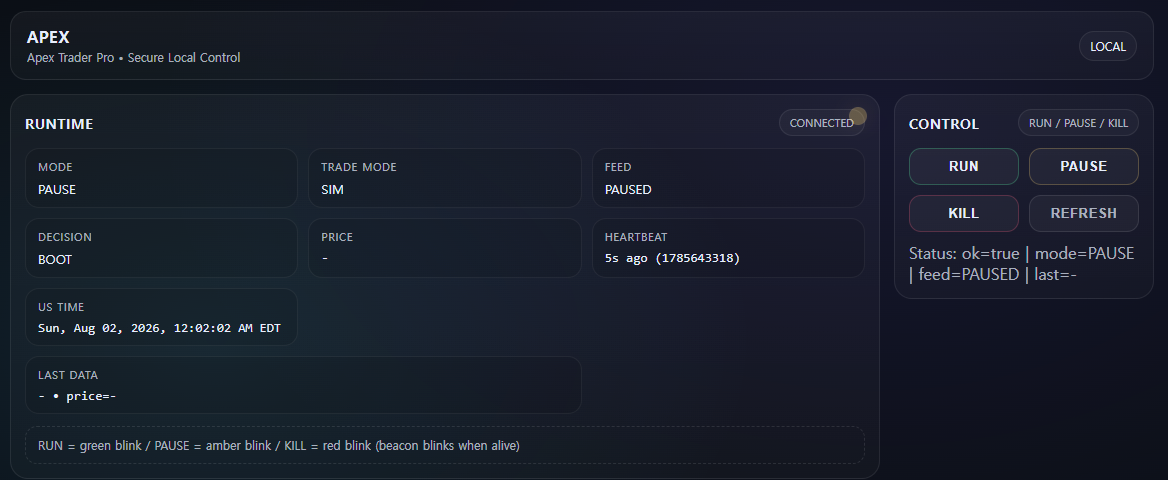
It has run, kill, and stop control buttons
Click the run button to start
It refers to the kill button stop.
It means push stop
It refers to the price list that is actually being traded on the Prince Data Exchange
Virtual investment sim mode control panel linked to real investment
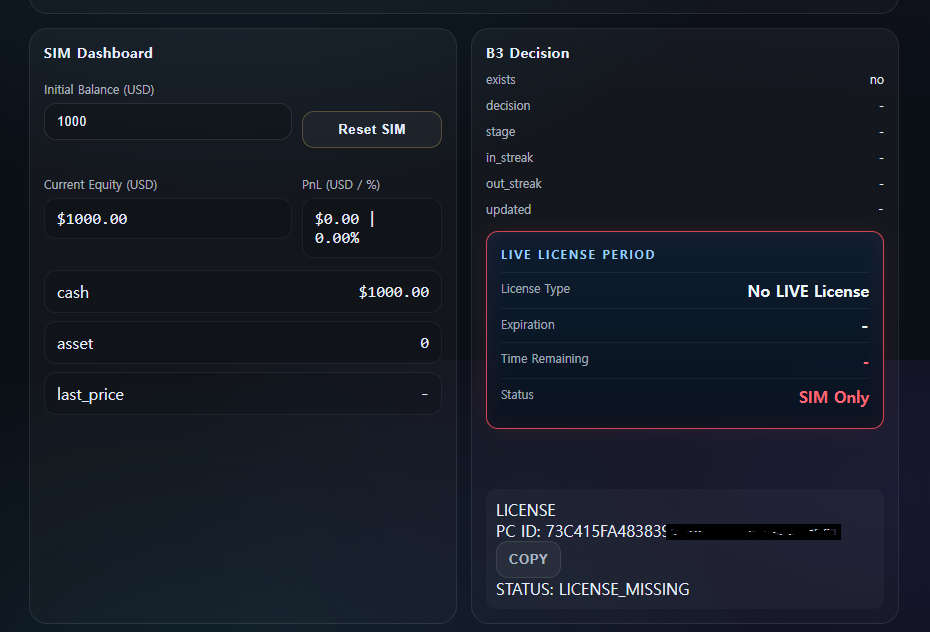
The virtual investment Sim Mode control panel, linked to real investment, displays the investment amount setting, return rate table, and the entered price and quantity.
Live Transition Notation Panel
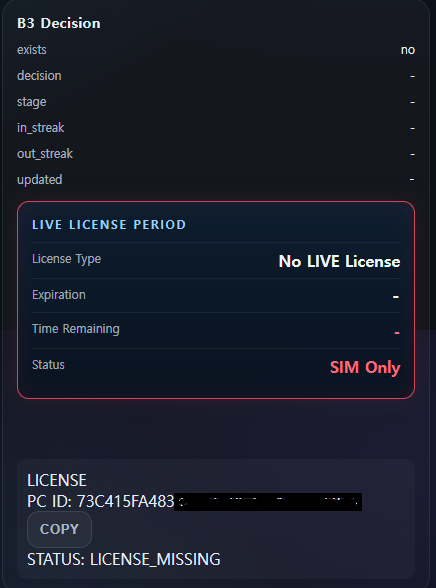
This is the live transition display panel, and the price entry quantity and price display status window is shown when live is activated; the PC ID number is important. A PC ID number is required to activate the live.
Learning Status Window and Sim, Live Buttons, Current Status Window Panel
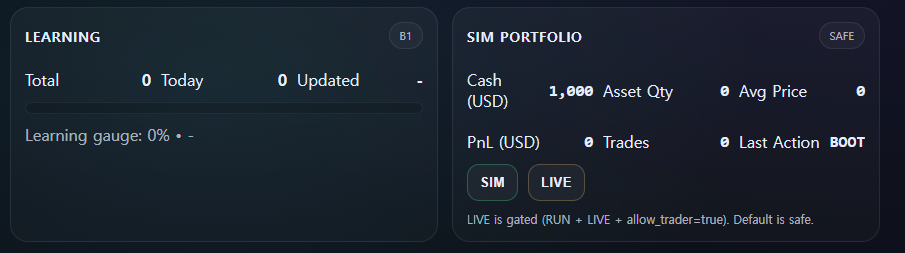
The learning status window refers to the amount of learning that makes you smarter through long-term study, and a large amount of learning helps with investment.
It receives linked data such as live and real-time investment, links it with investments, proceeds with investments, and displays the data.
You can switch using the live button and the heart button, and the amount entered is displayed along with the quantity.
API key panel for exchange activation
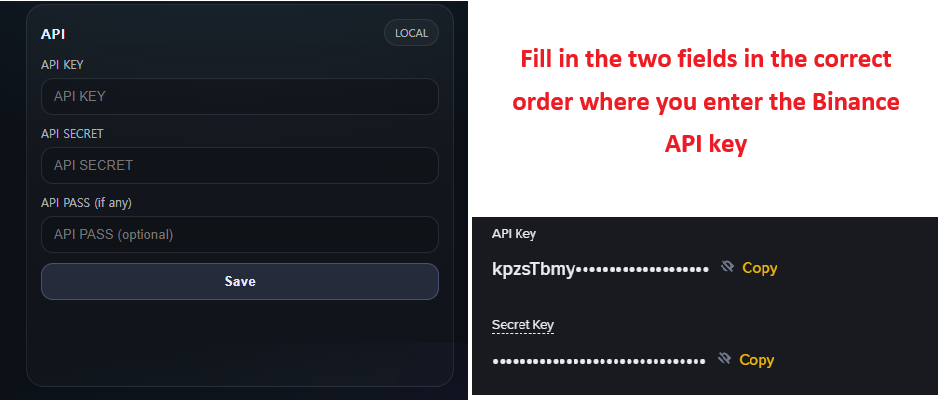
The panel for entering virtual asset exchange API keys requires either three API keys or two API keys, depending on the exchange After checking, you just need to enter the API key
This is a place where you purchase a live license, activate it, then enter the API key and use it
Exchanges API-linked usage amount settings panel
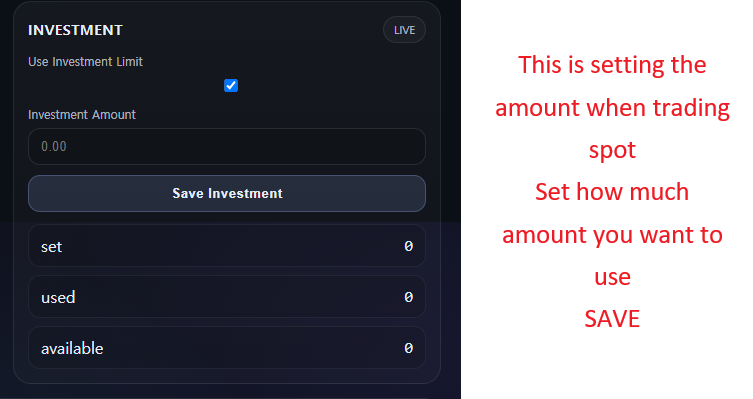
This is a panel where you can set the investment amount, and it is used for price settings when trading spot. After setting the trading amount to the price you want up to the upper limit and saving it, it will be applied
Usage amount setting panel linked to each exchange’s futures trading API
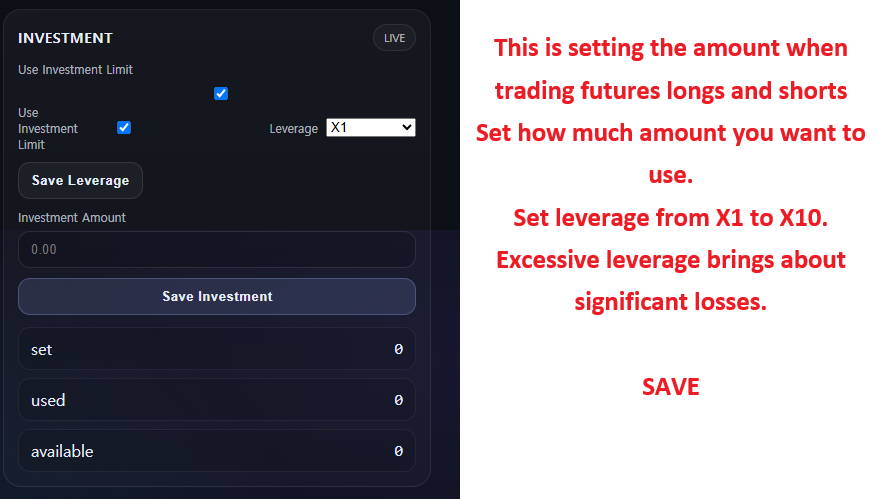
Unlike the spot trading panel, the panel you are currently viewing is for futures trading, and each program has different futures and spot panels Please check and use it accordingly. The current panel is for the gift version, and you can only set leverage up to X10. Only X10 is available to minimize risk, and the maximum can be set from X1 to X10. You can also set the amount you want to use up to the upper limit
Ad panel status window
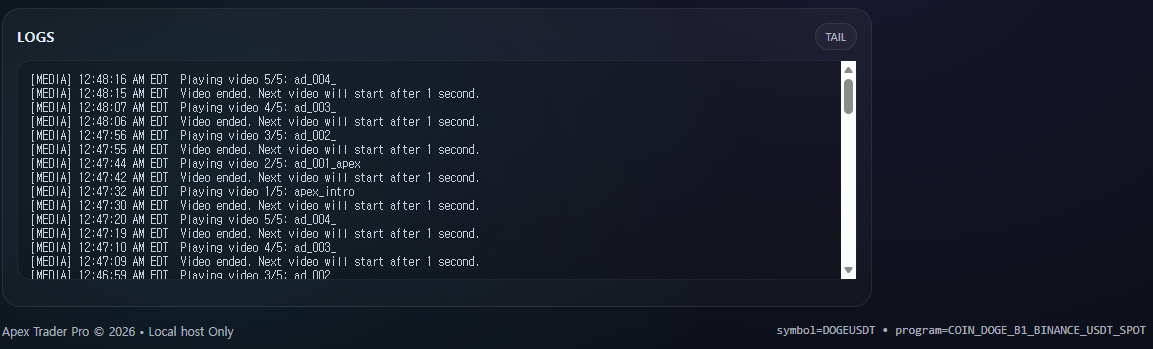
It is a panel for advertising and a panel through which you can verify that the advertisement is functioning