License Guide
Reference for License Purchase
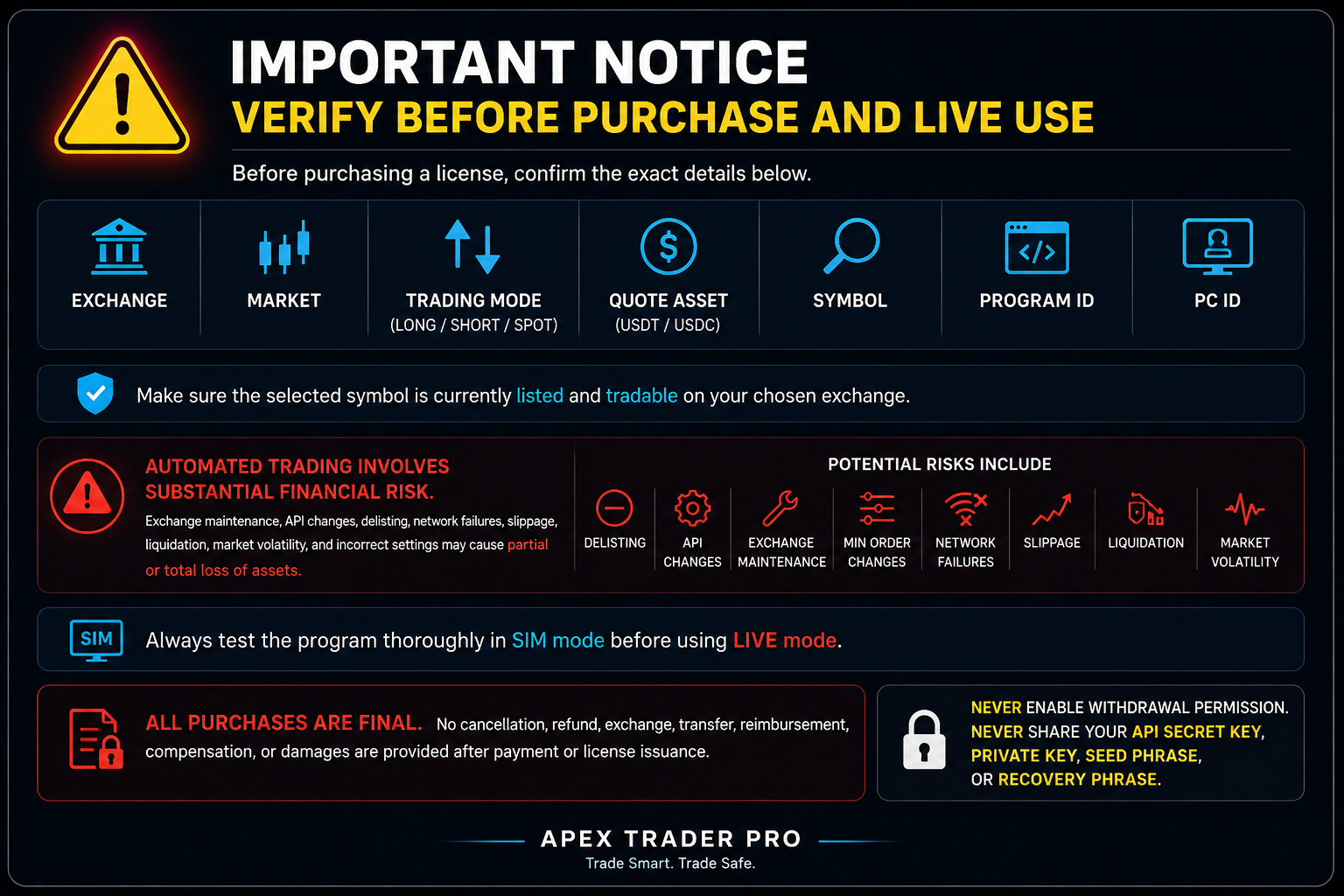
Mungo to be checked before purchasing a user license
Activate live
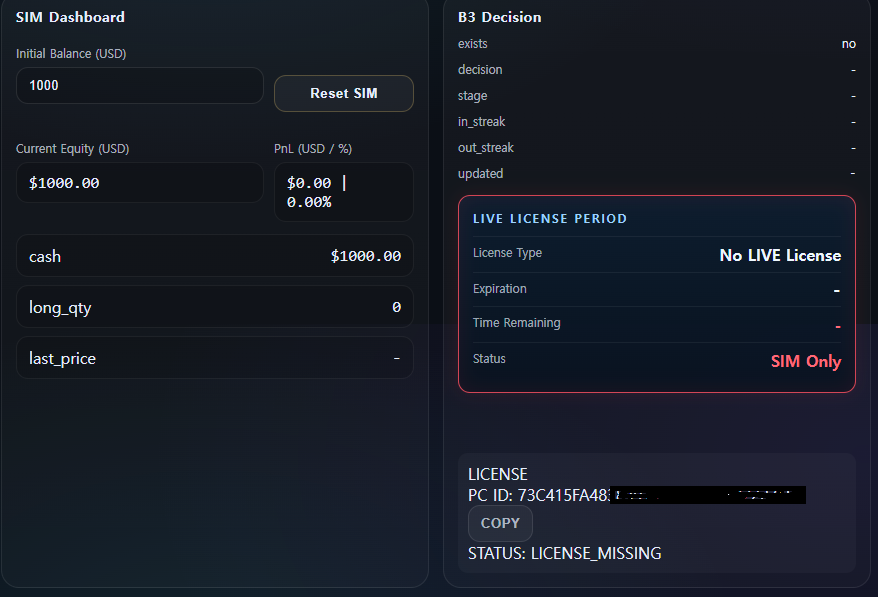
To enable live, you need to go to the site and purchase a license
You must definitely copy the PC ID number.
Go to the APEX site license purchase page
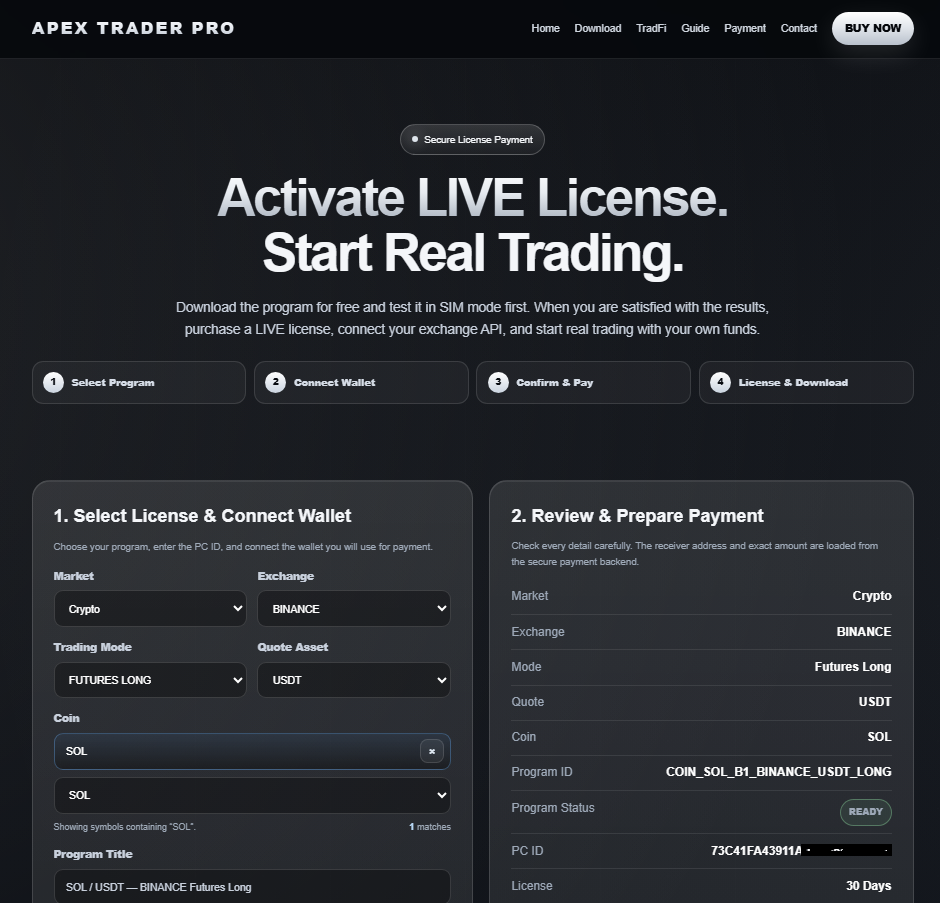
Before purchasing the license, be sure to check the exchange, symbol, and PC ID, and connect the wallet you will use for payment. Download the program, check the exchange ID, name, symbol, and select the trading amount—USDT or USDC—and confirm
Download and install from the Chrome Web Store
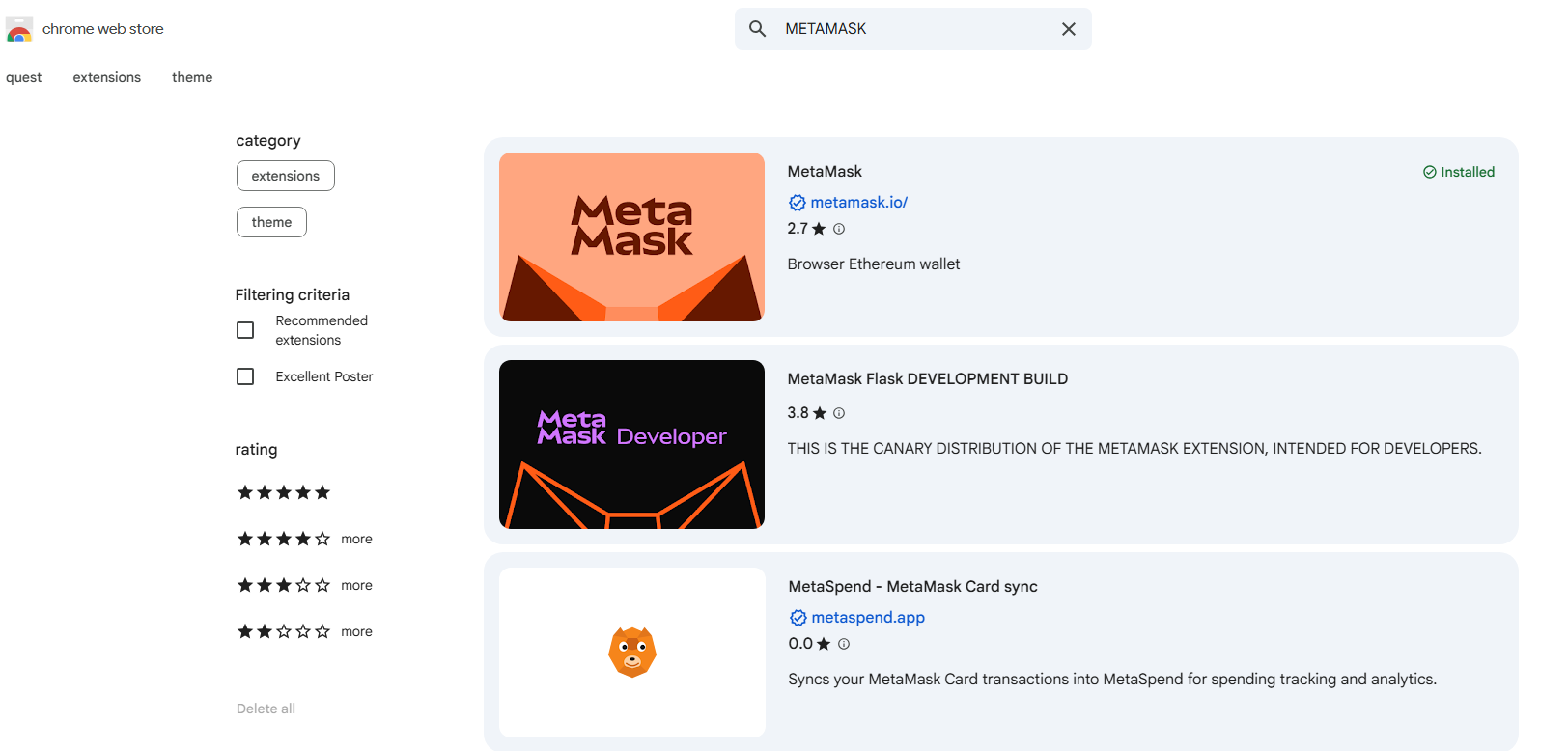
Select the Chrome Store web download and installation you want, and choose Trust Wallet, MetaMask Wallet, or Binance Wallet
Download and install from the Chrome Web Store
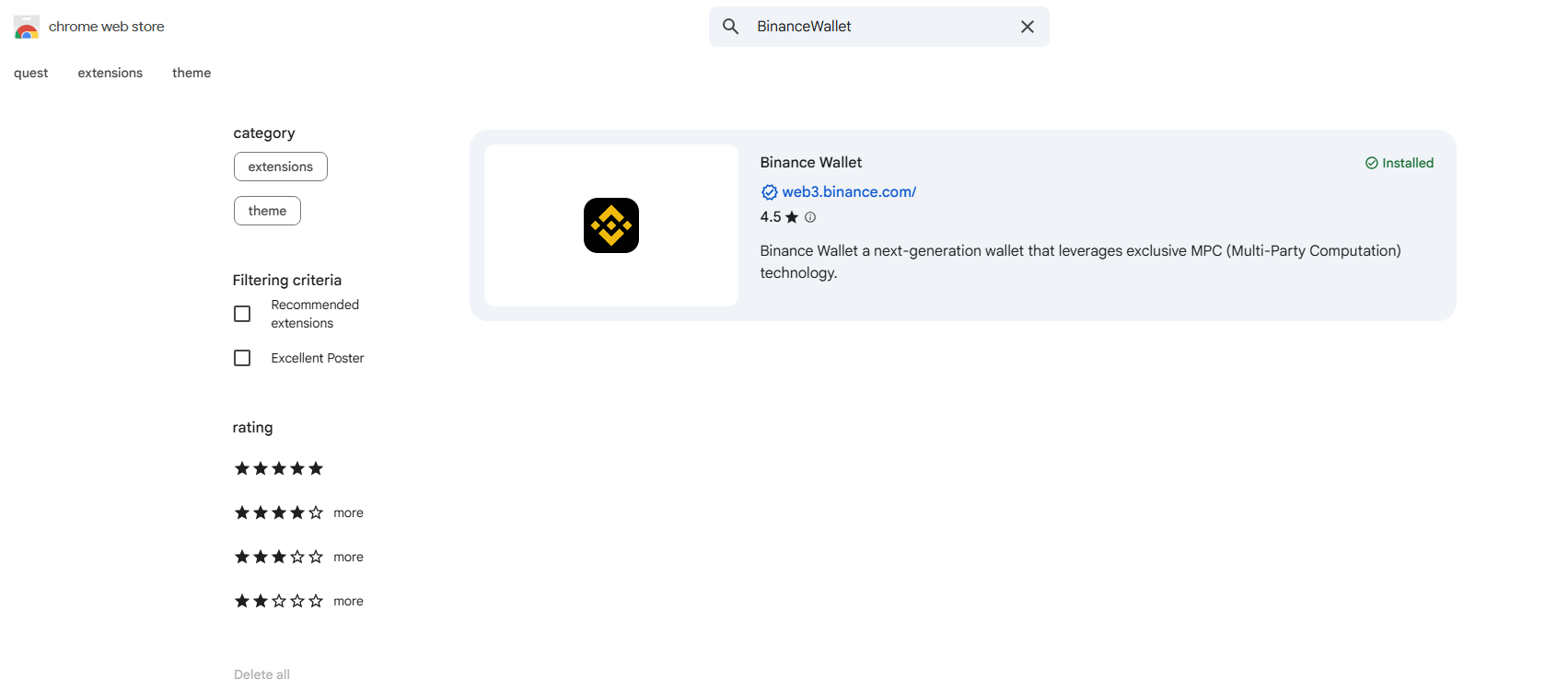
Download Binance Wallet from the Chrome Web Store
Create a wallet with the exchange you want to pay to
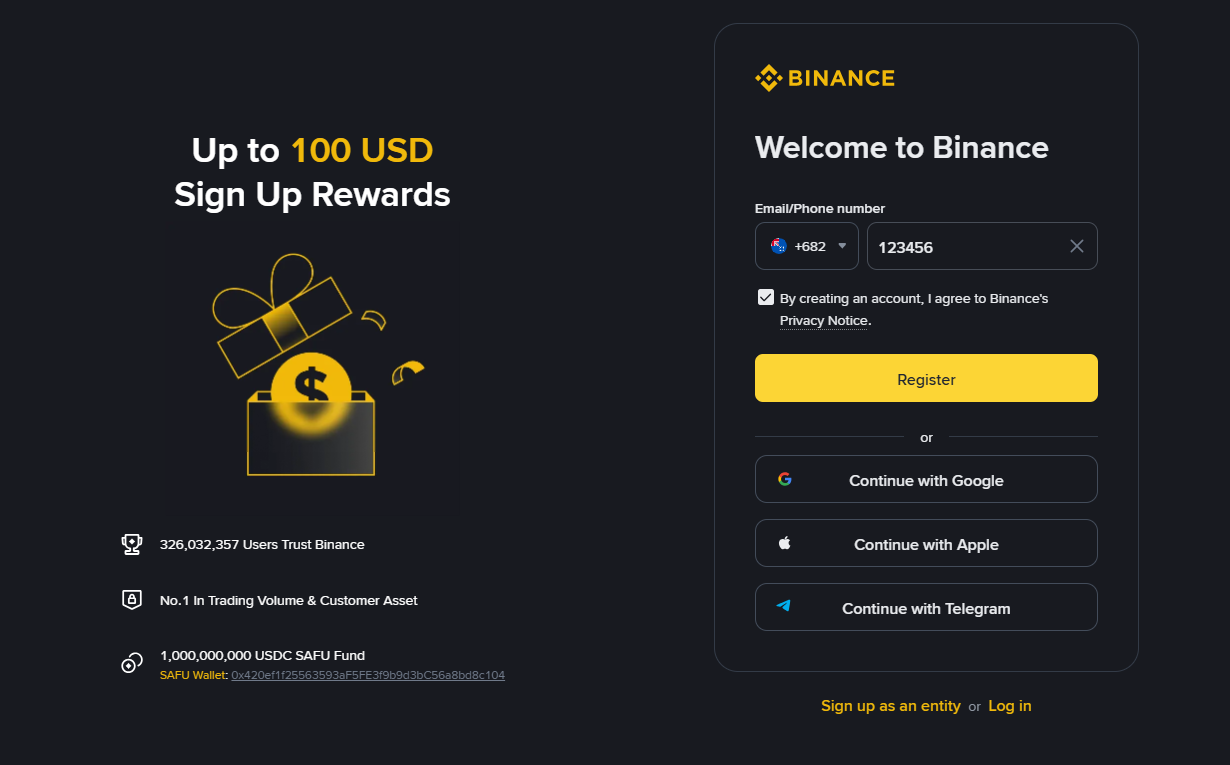
Complete the registration for one exchange wallet to make a payment
Deposit the amount you want to pay between USDT and USDC, and link it with the APEX site
In other words, the wallet you are paying with must have an amount of $55.
Create a wallet with the exchange you want to pay to
Complete the registration for one exchange wallet to make a payment
Deposit the amount you want to pay between USDT and USDC, and link it with the APEX site
In other words, the wallet you are paying with must have an amount of $55.
Checklist to check before purchasing a license
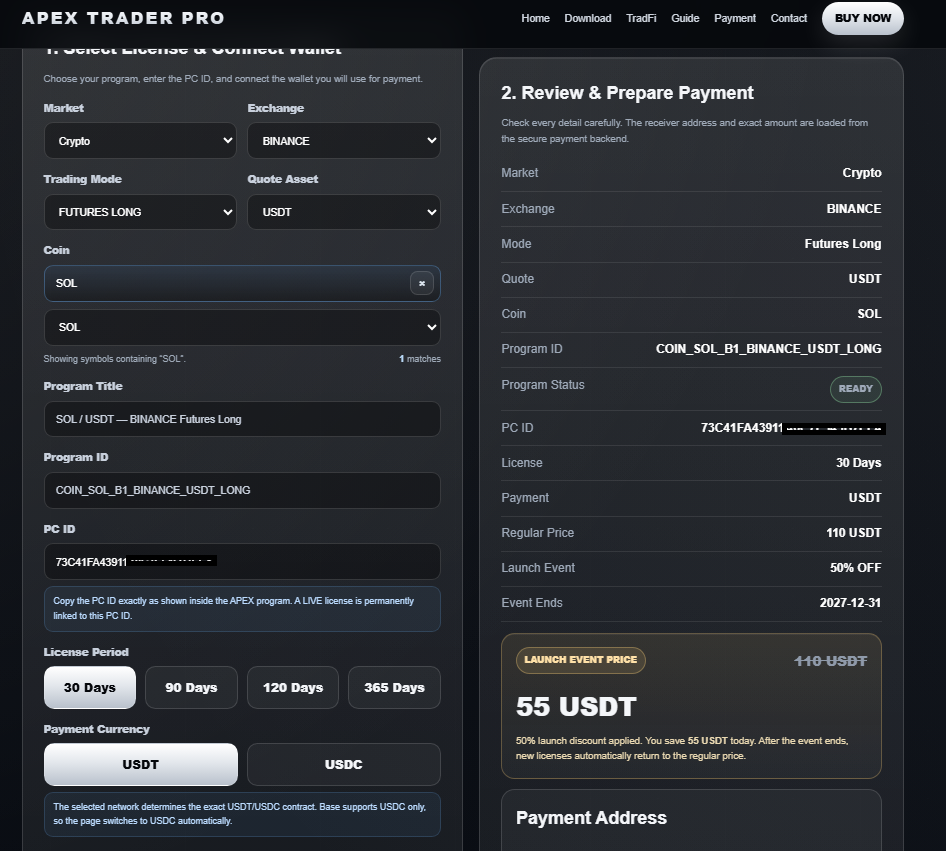
Select the program to use and confirm: USDT, USDC confirmation, symbol, long, short, spot
Check PC ID, check the amount in the wallet
Make sure to check all the wallet connections to be paid
Wallet connection
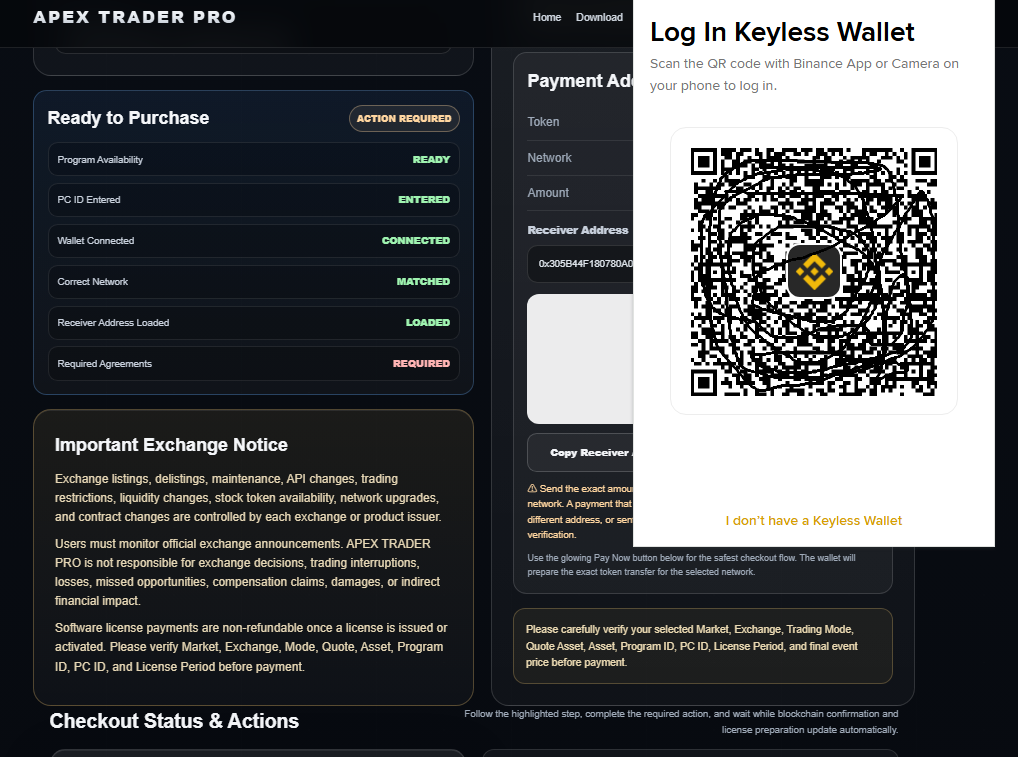
Connect the wallet you want to use for payment
After connecting the wallet to use the payment, if there is no amount in USDT or USDC, you must deposit it and then try connecting again from the beginning.
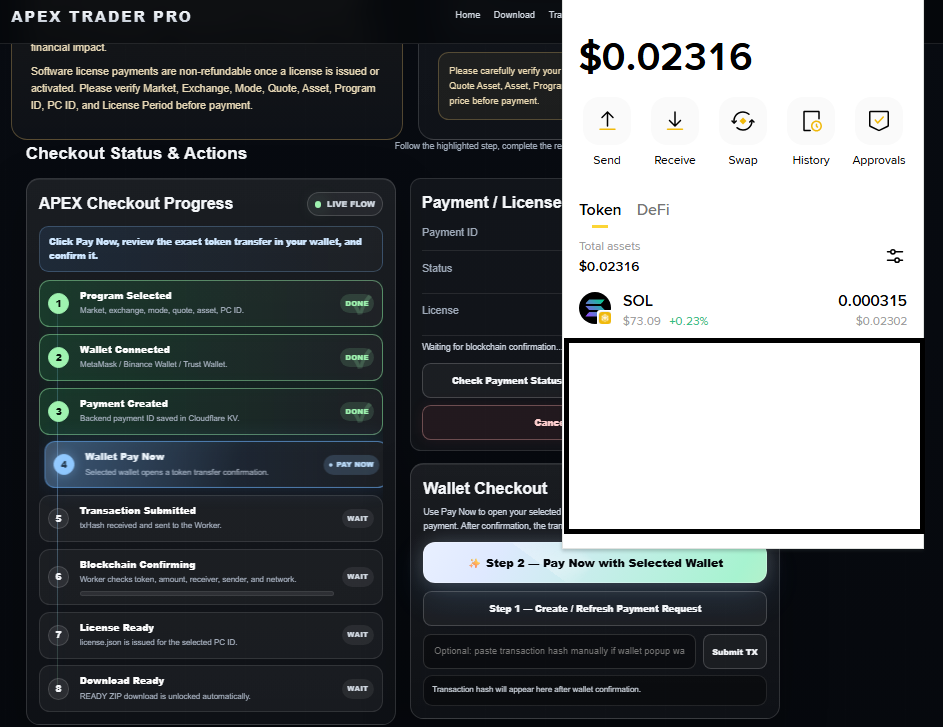
After connecting the wallet to use the payment, if there is no amount in USDT or USDC, you must deposit it and then try connecting again from the beginning.
If you have the amount, you can proceed with purchasing the license.
Wallet connection used, successful
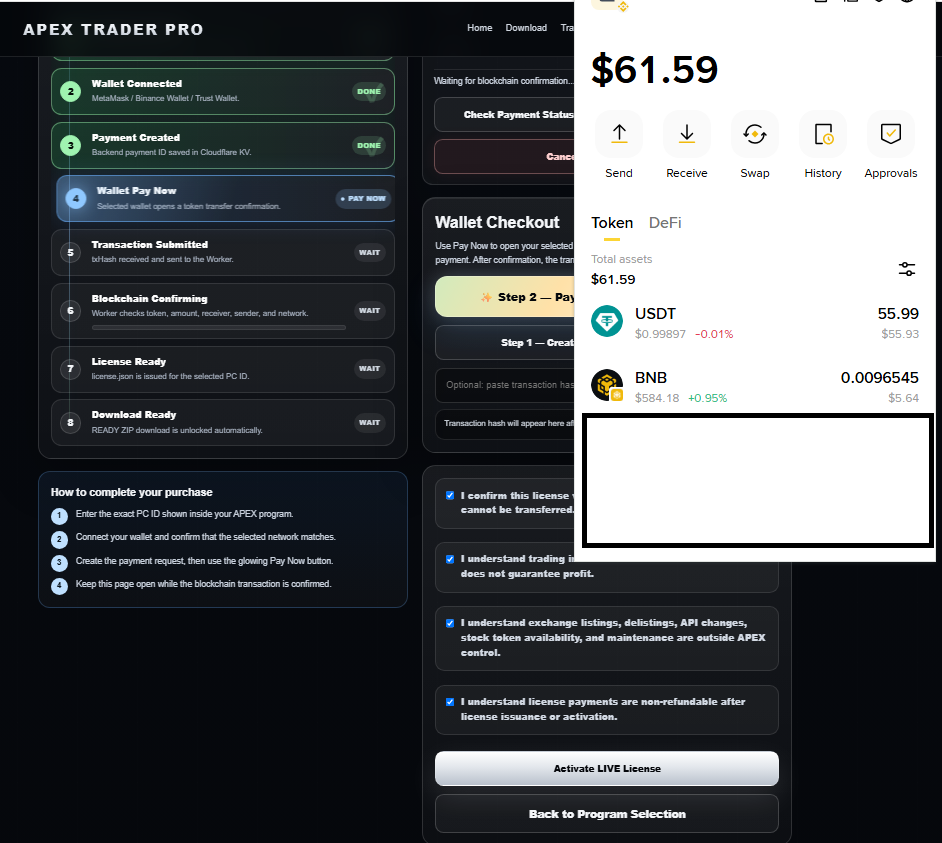
After connecting your payment wallet, check whether the payment amount of $55 and the network gas fee are included
The corresponding amount should be displayed in the linked wallet
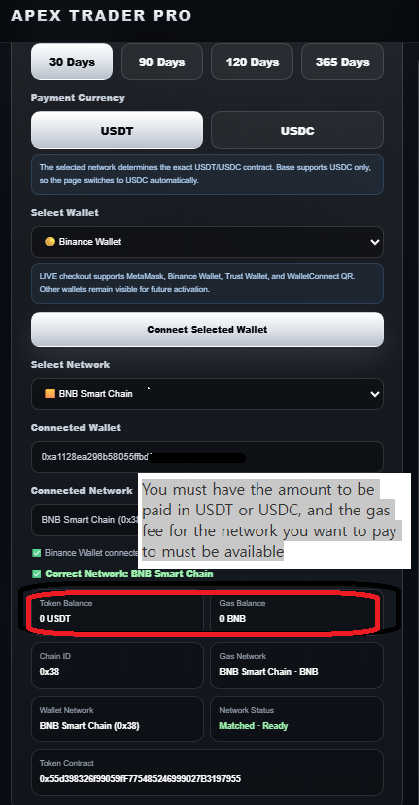
Please check your wallet balance If there is no amount, you need to proceed again and connect.
Wallet APEX site connection, USDT and USDC verification, and the gas cost for network use will be displayed
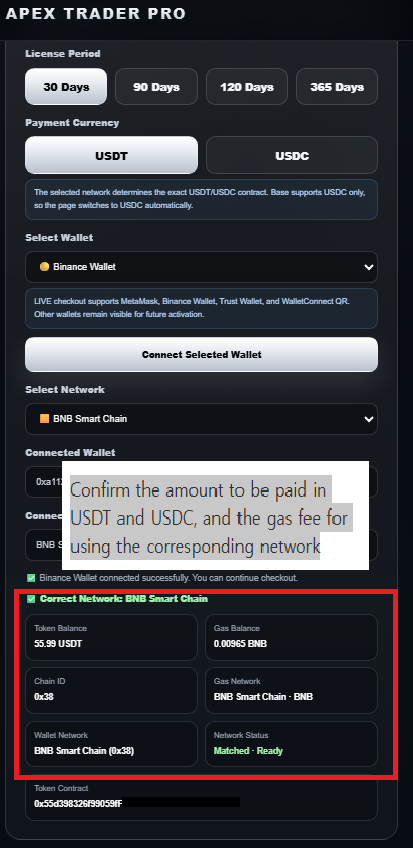
The corresponding amount should be displayed in the linked wallet
If the corresponding amount is visible in the connected wallet, the connection is successful and payment can proceed.
I checked all the contents of the confirmation checkbox It is marked as "the user knows."
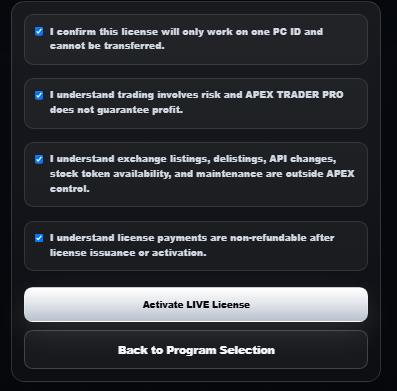
The user must know the content
I checked all the contents of the confirmation checkbox.
You can purchase a license
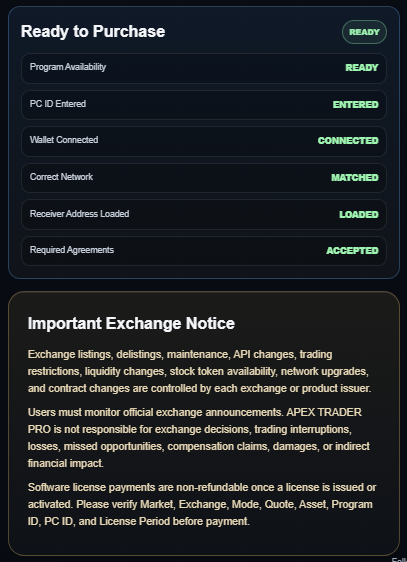
Please check the green indicator panel before payment
Step 2 — Click “Pay now” with the selected wallet
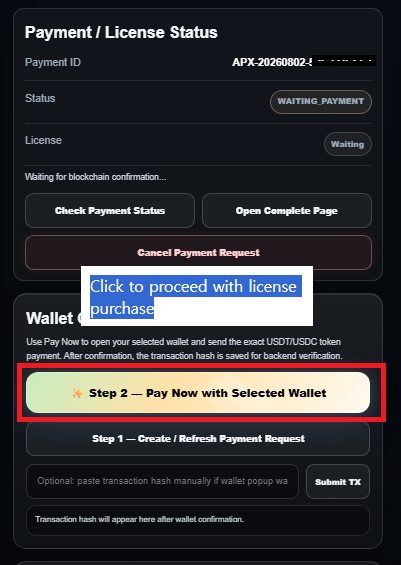
Step 2 — Click “Pay now” to the selected wallet to proceed with the payment, and you may have to wait up to 3 minutes.
Payment in progress
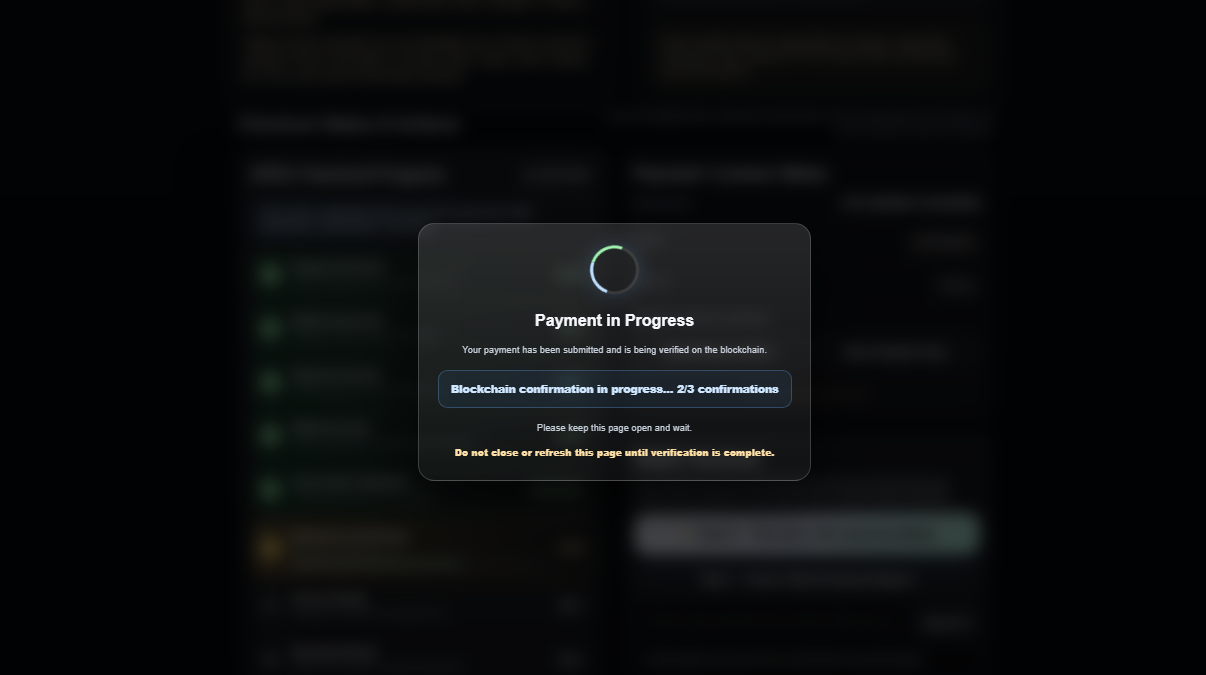
Payment in progress
It is automatically saved to the download file at the upper right
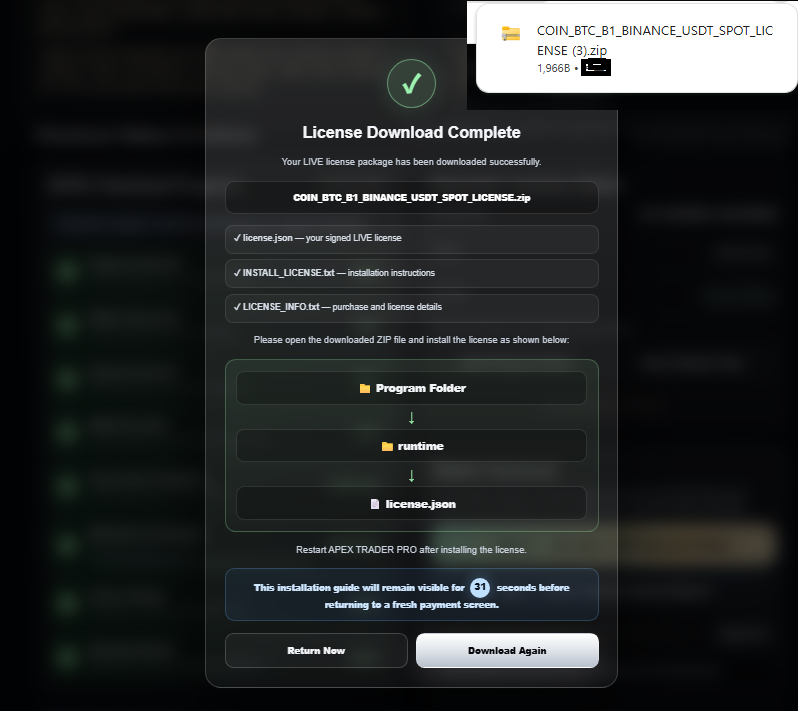
Check the license when the payment is in progress and completed
It is automatically saved to the download file at the upper right
Please check the user PC download page
Extract the license compressed file, check the license inside the downloaded file
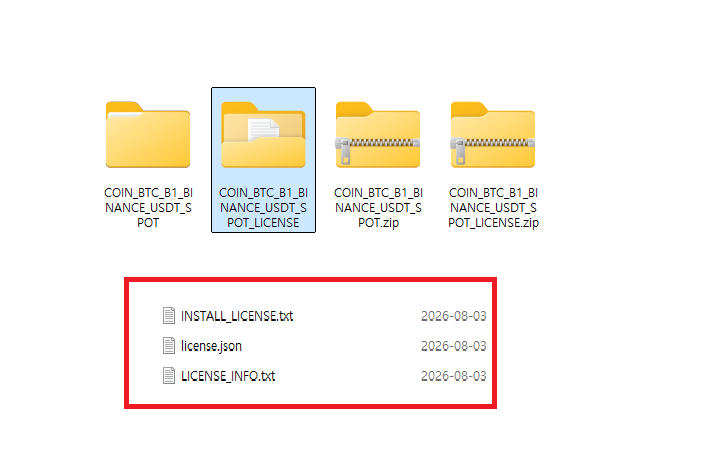
Please check the license in the license download file You just need to add runtime inside the program.
You can put it inside the License Runtime folder
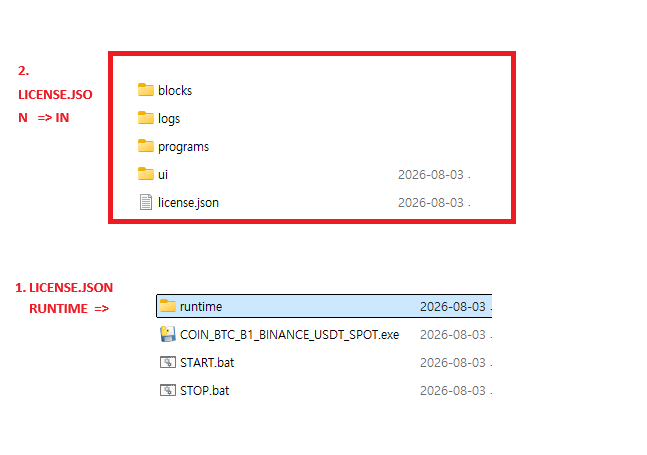
It just needs to be located inside the runtime file of the user-selected program