Binance API Guide
You must sign up for Binance yourself first.
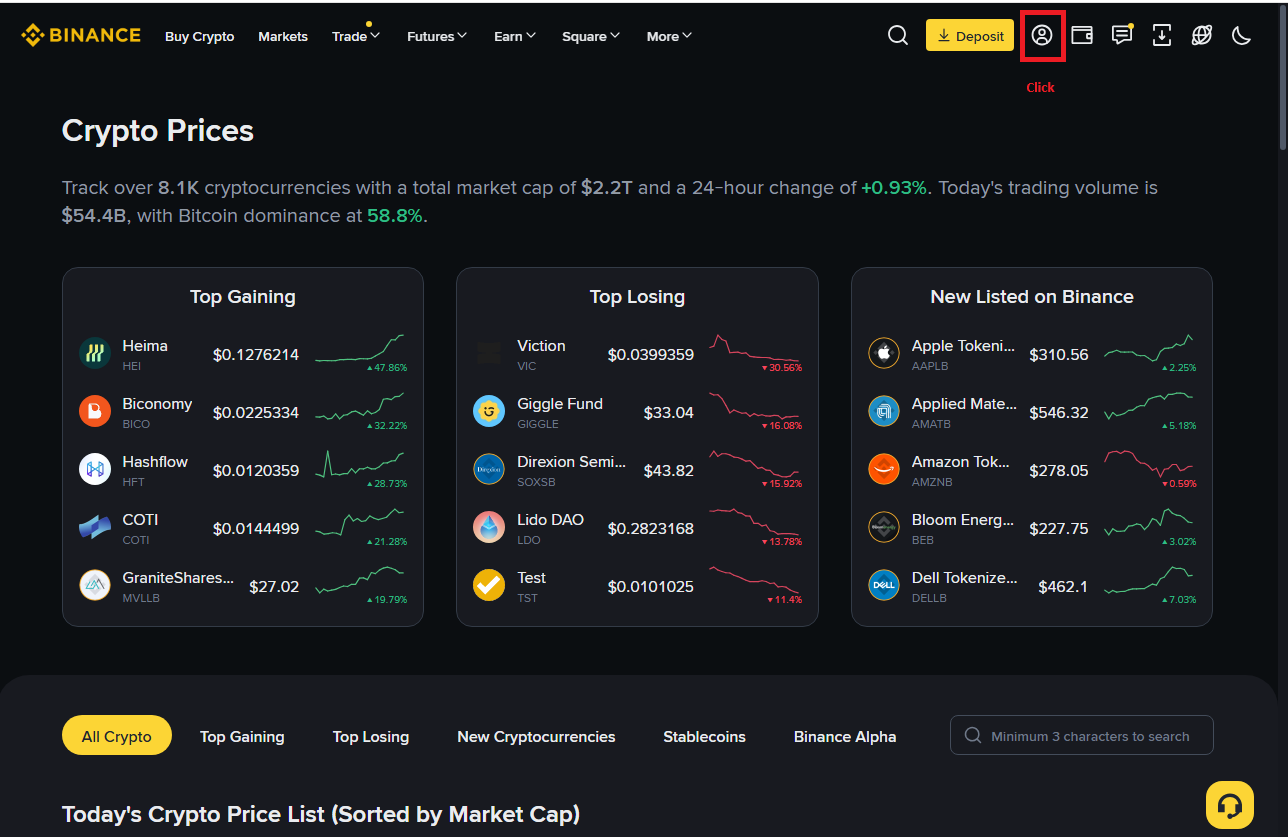
Since there is a Binance sign-up period, you should first register according to the Binance exchange requirements, and this page is an image of the page where you are already registered on the Binance exchange.
Click API manage
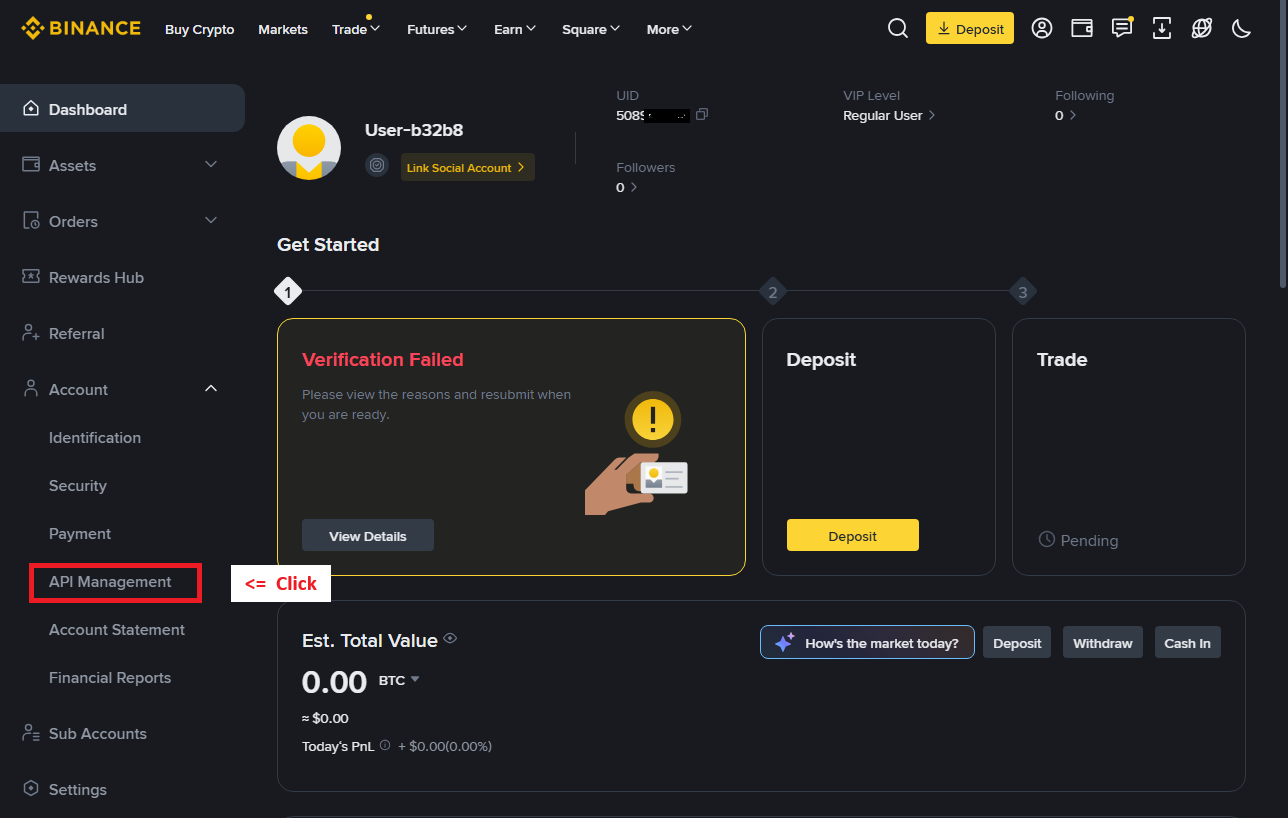
Click Binance API Manage, then click Create API
Create a Binance API
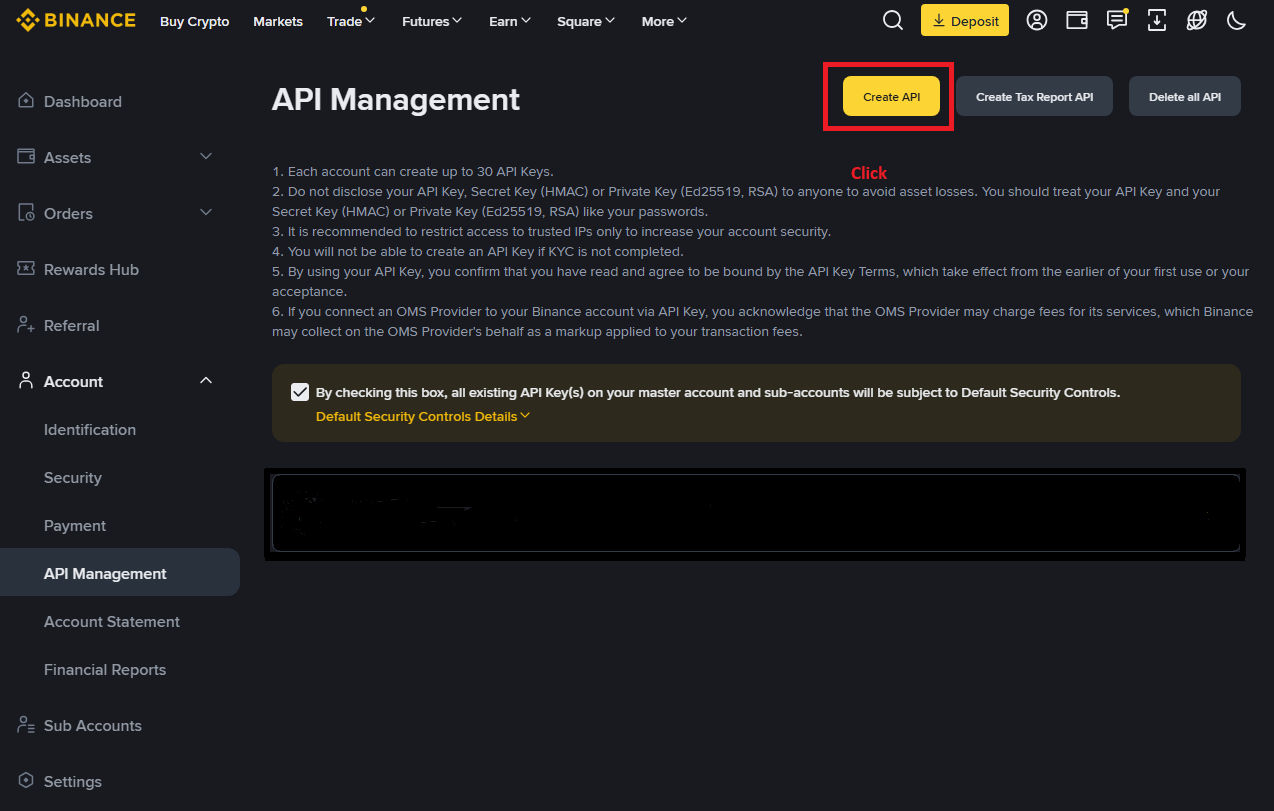
Click New Create
Click Create System
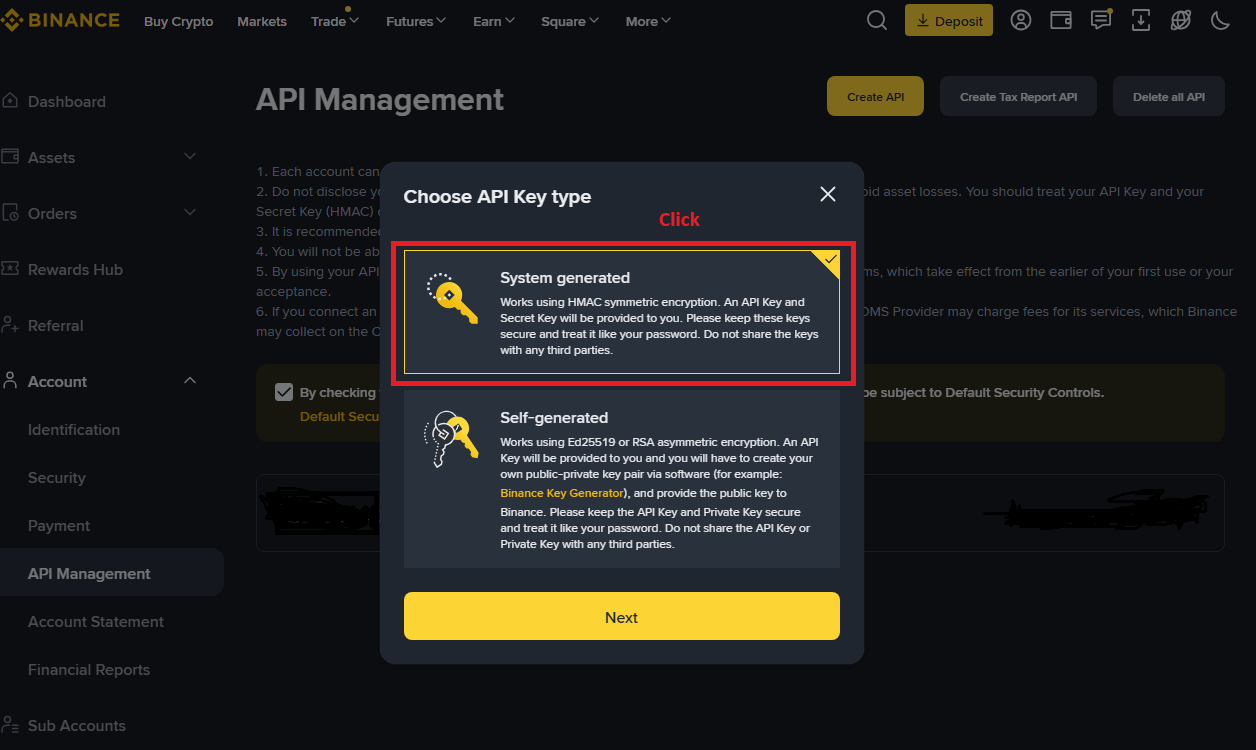
Click Create System
Enter the key API name
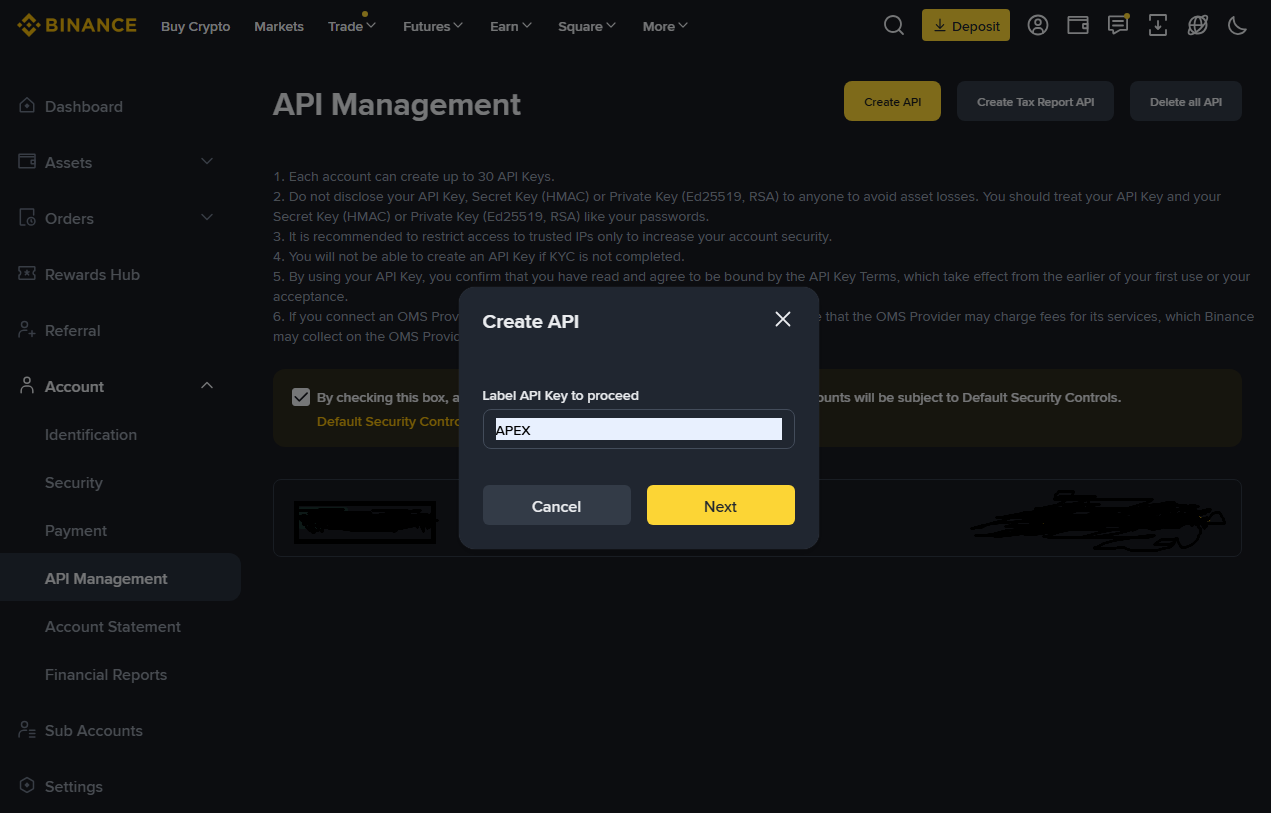
Enter the key API name
A key API will be created.
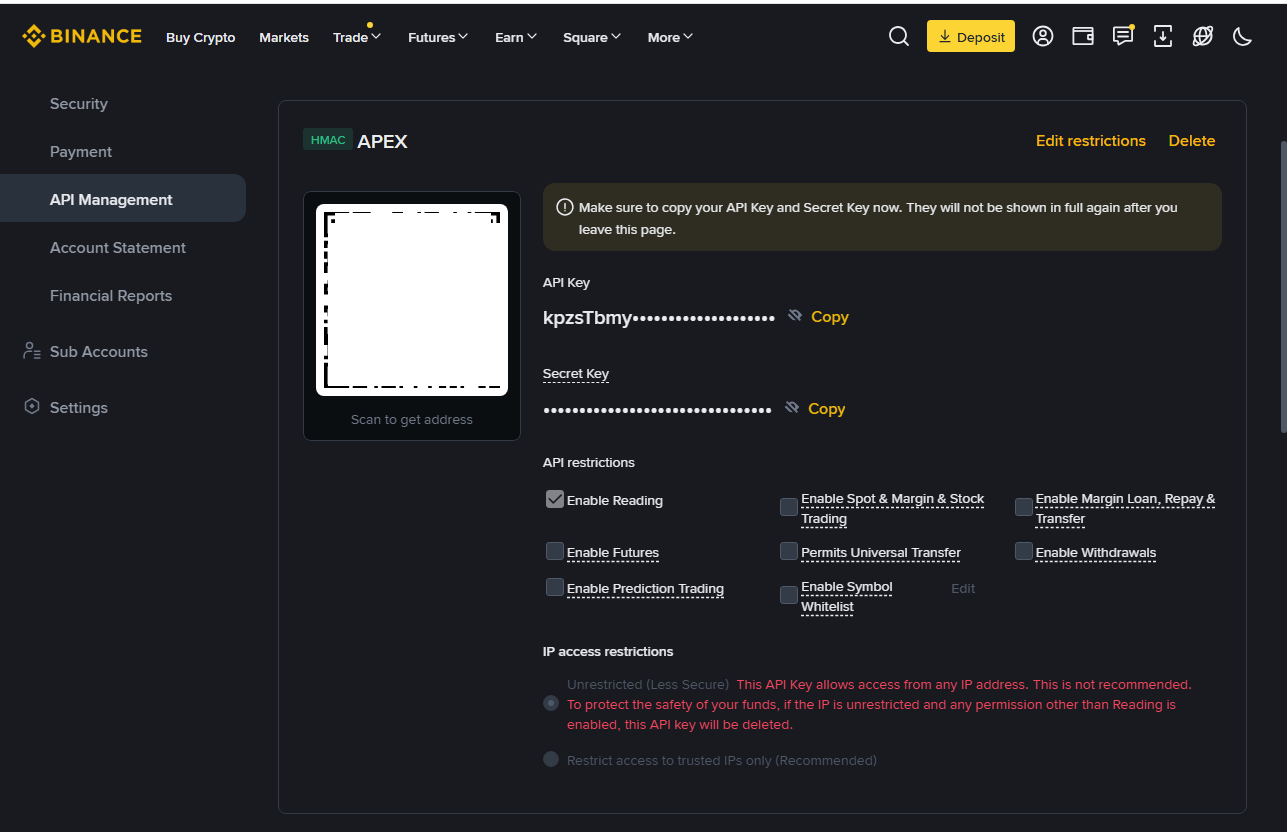
A key API will be created.
Make sure to copy the API key and circularity key and keep them safe.
Keep it so it is not exposed to others
Enter the IP address to use the program
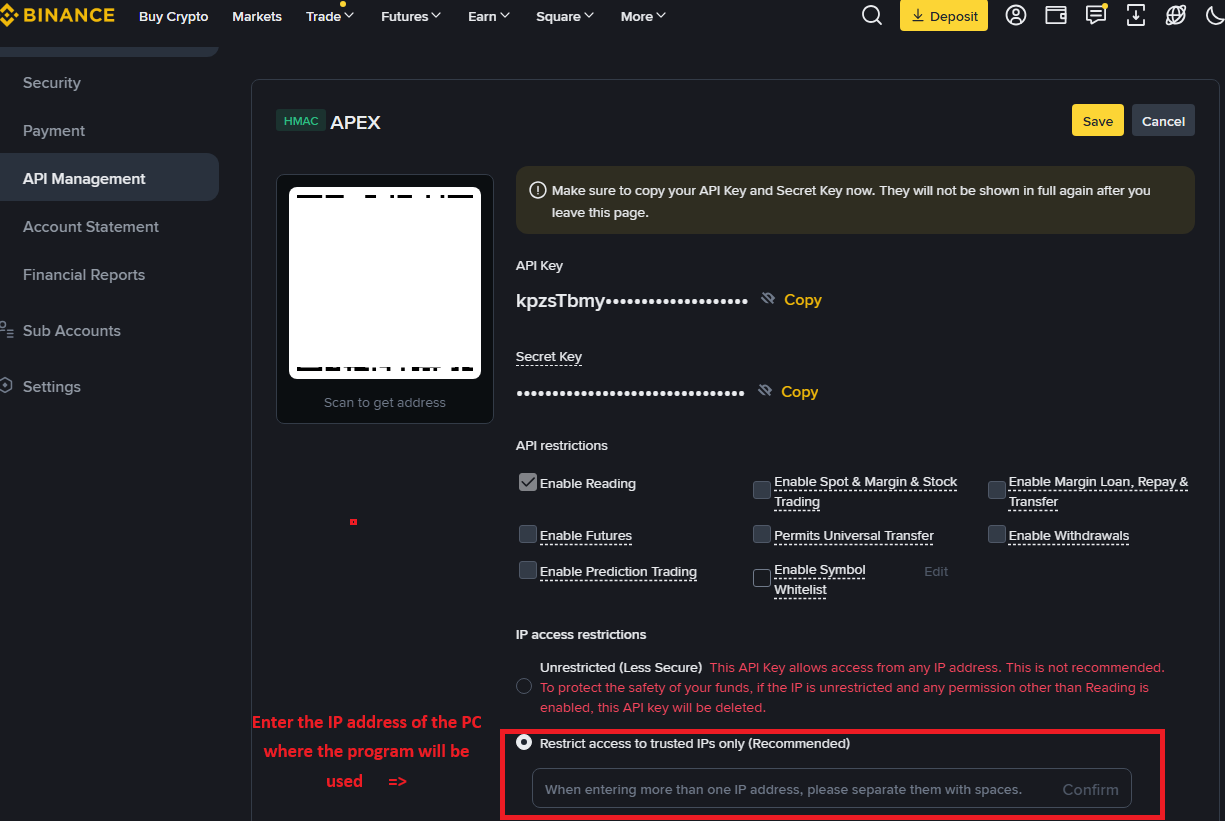
In the input window for the IP address to use the program, you need to enter it in the automatic trading program input window
A window will open so you can make the check.
Finding the IP address to use the program on
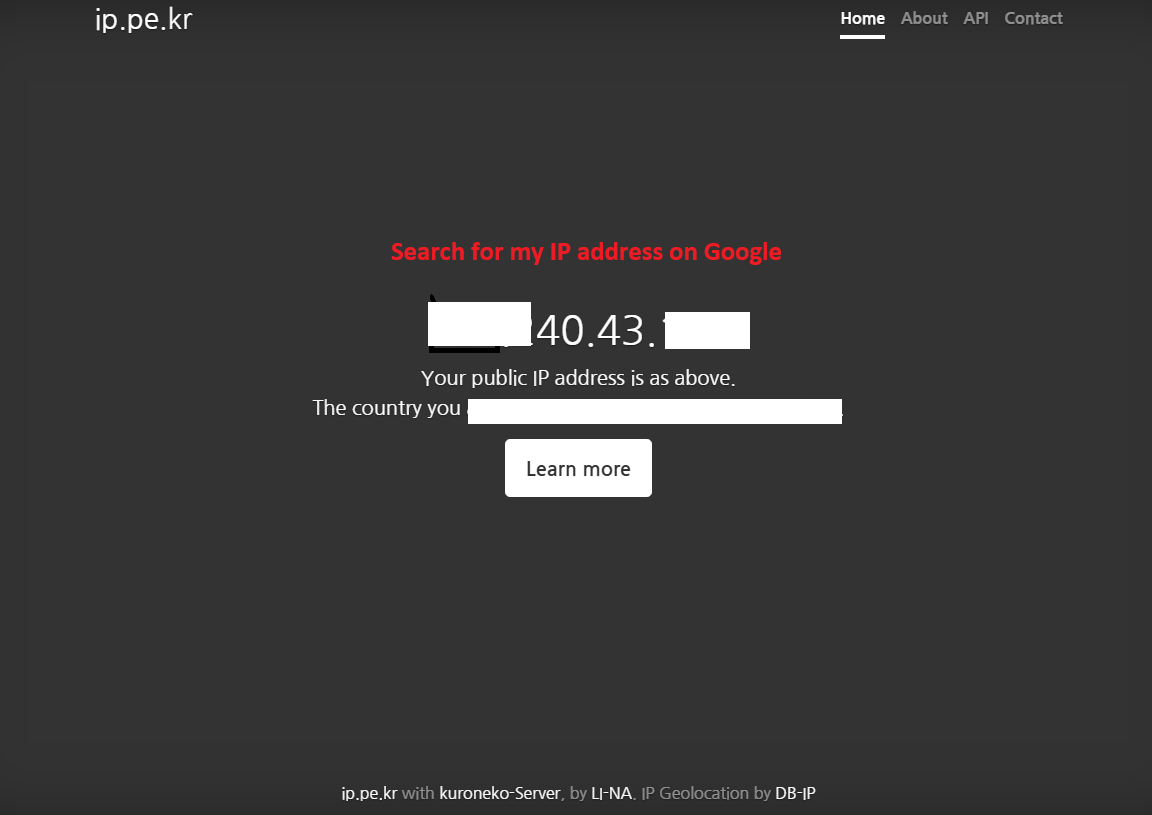
To find the IP address to use the program, type my IP address into the Google search bar and click Find. Then the address number will appear, copy it, and paste it directly into the API IP input field
Enter the symbol to use the auto program
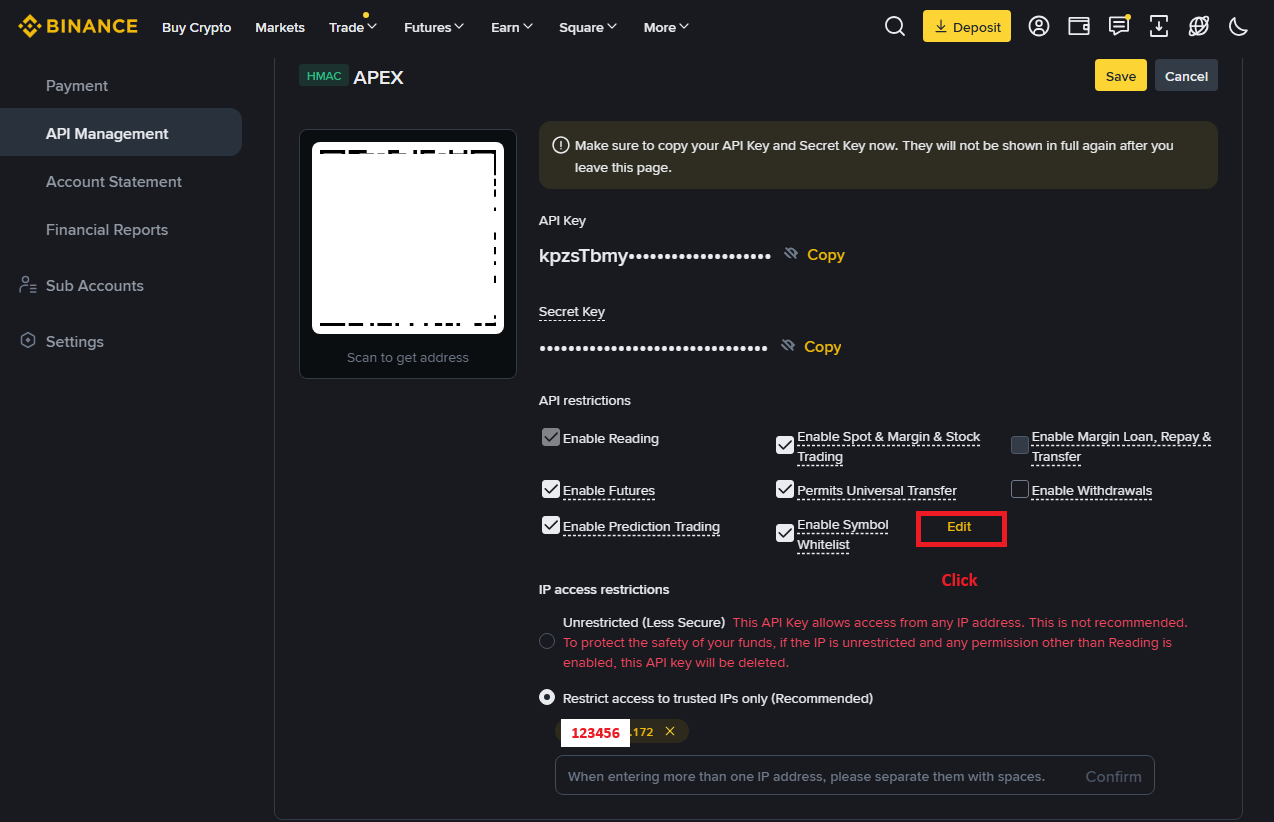
Enter the symbol you want to use for the automatic program, or also enter the symbol you want to use later, and check the notes and check them as well
Enter the symbol to use the auto program
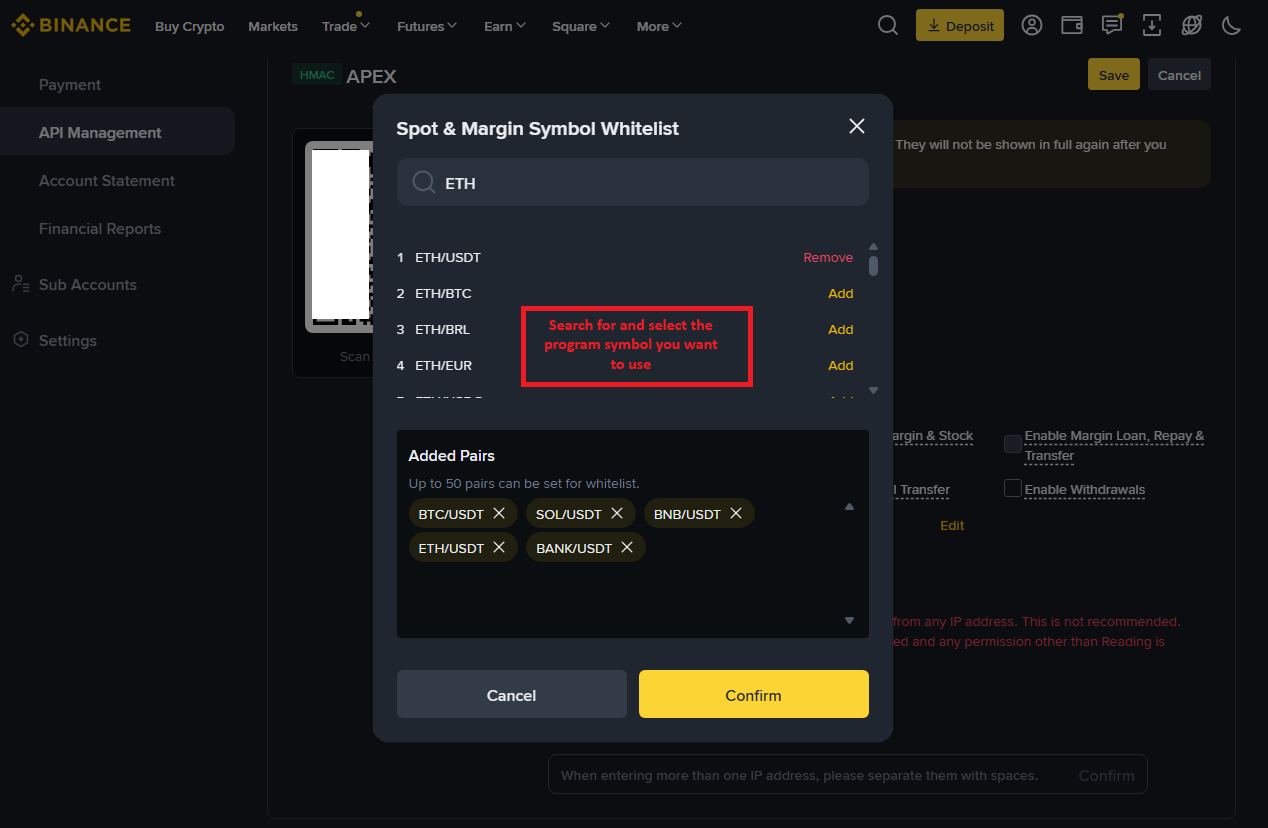
Enter the symbol to use the auto program
Check all the items
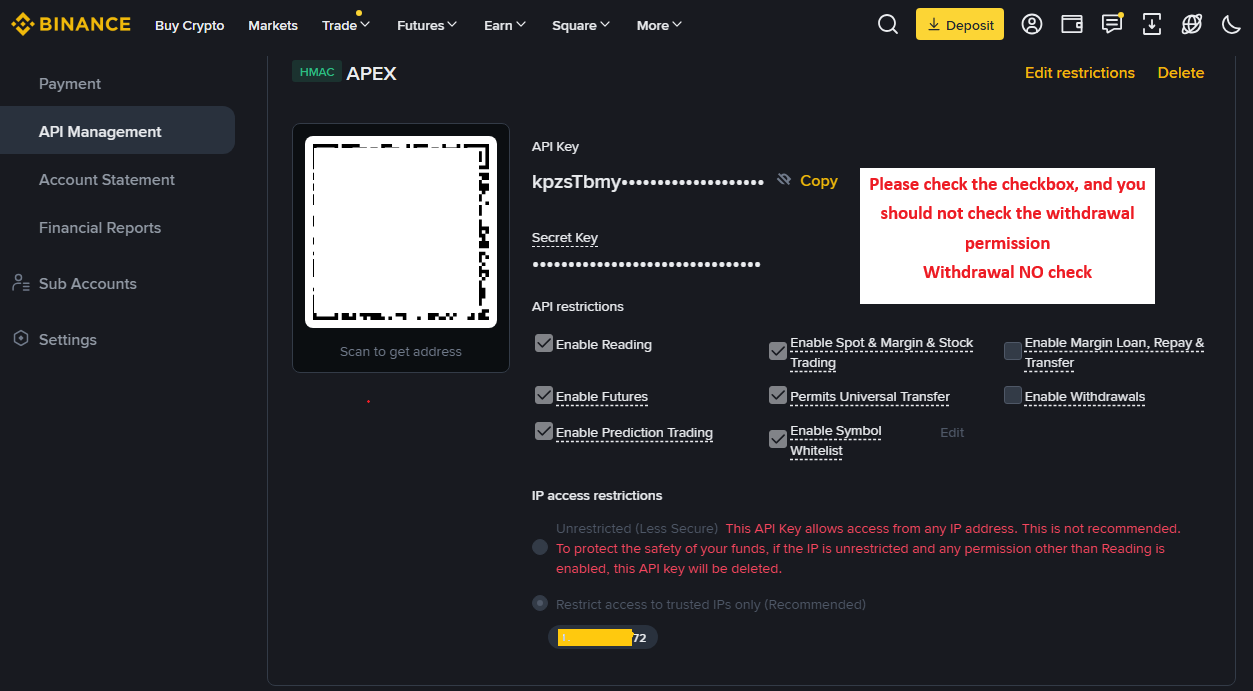
Check all the items
Points to Confirm
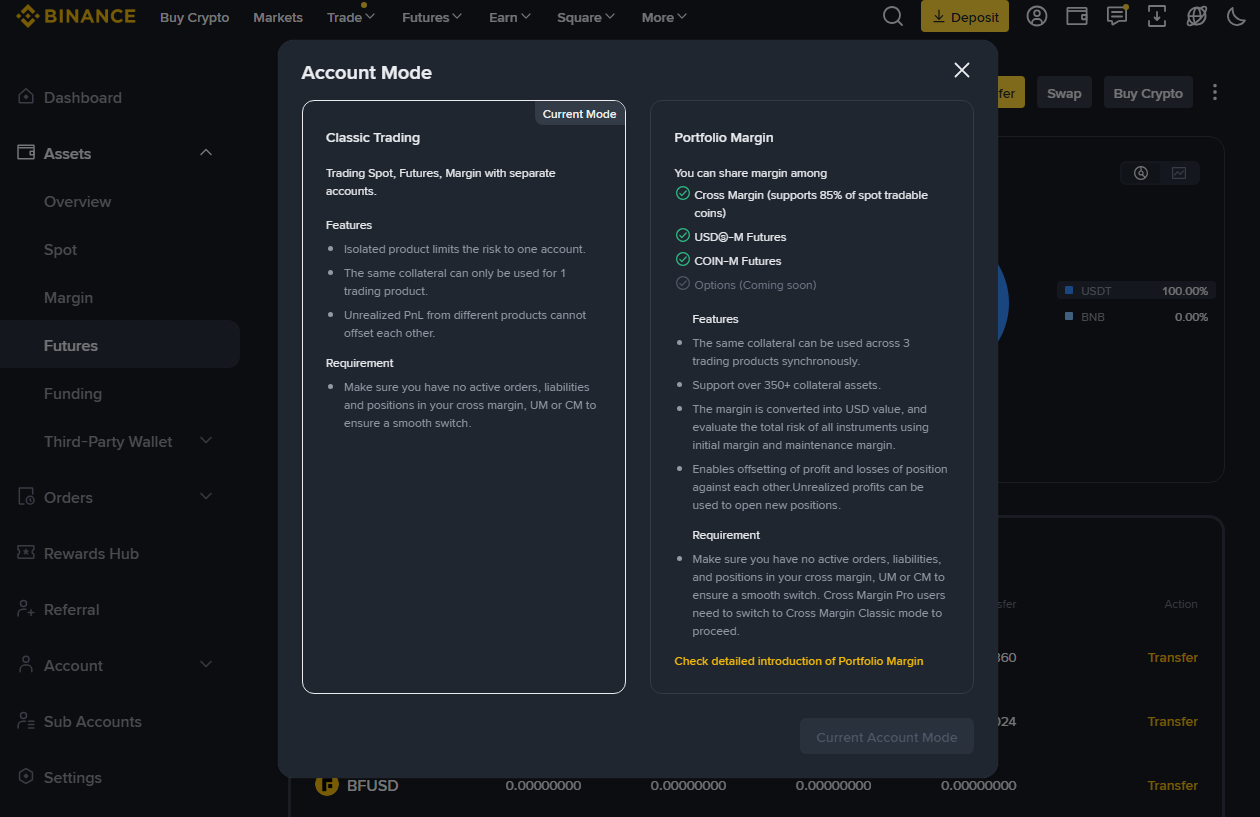
Points to Confirm
How to Set Up the Binance Exchange
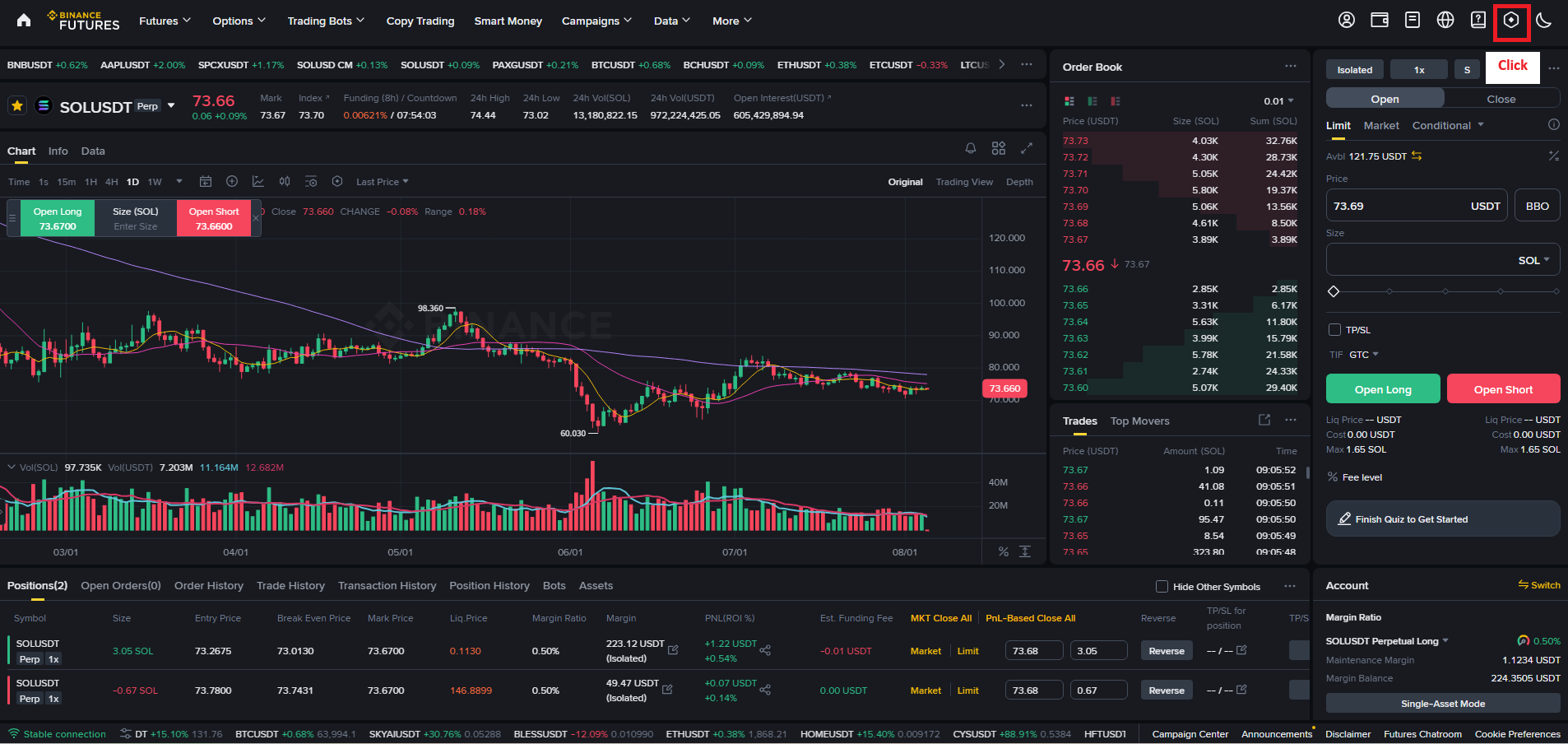
On the Binance program’s symbol trading page, click the settings section at the top right
In the transaction window, select the mode the user wants to set
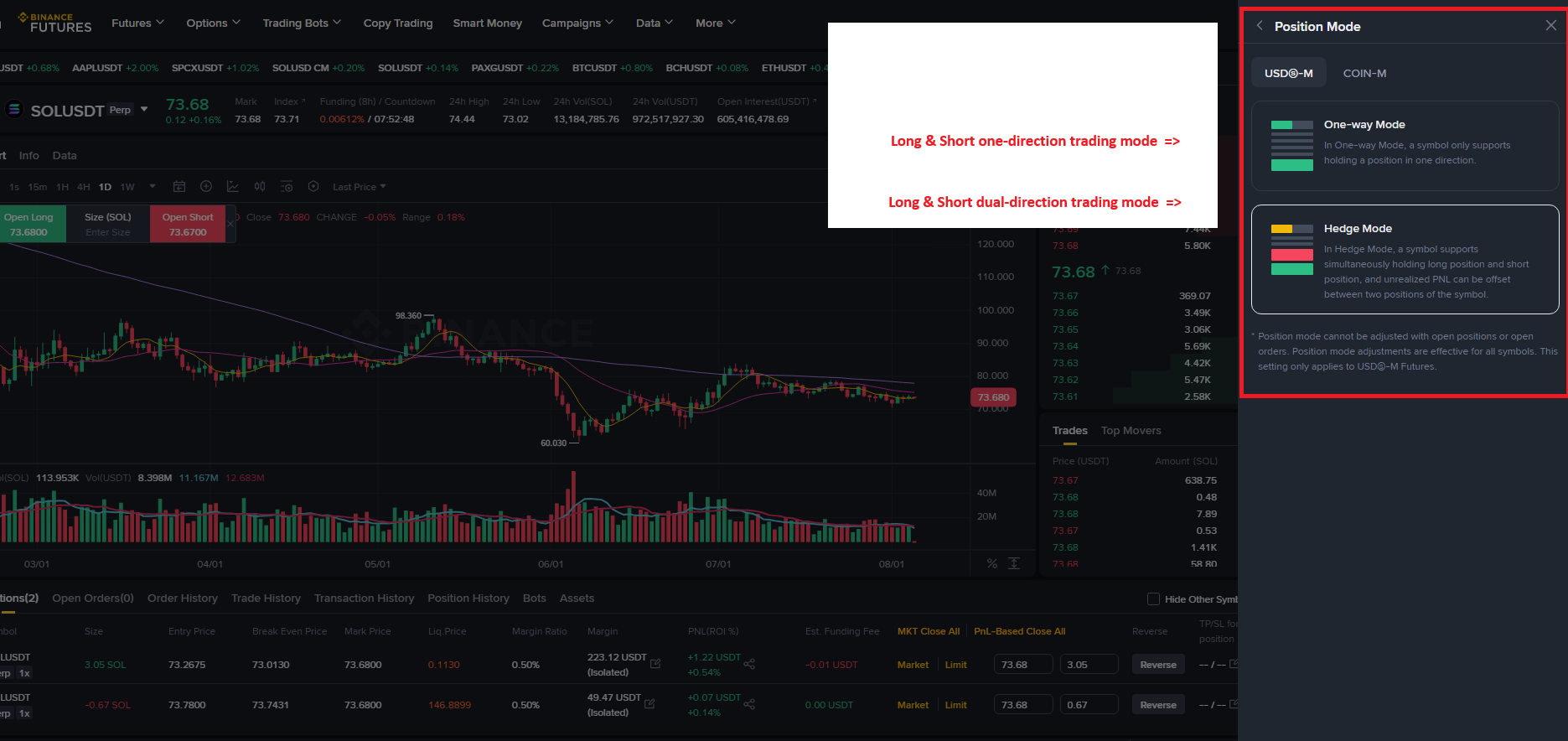
In the transaction window, select the mode the user wants to set
Entering long and short mode
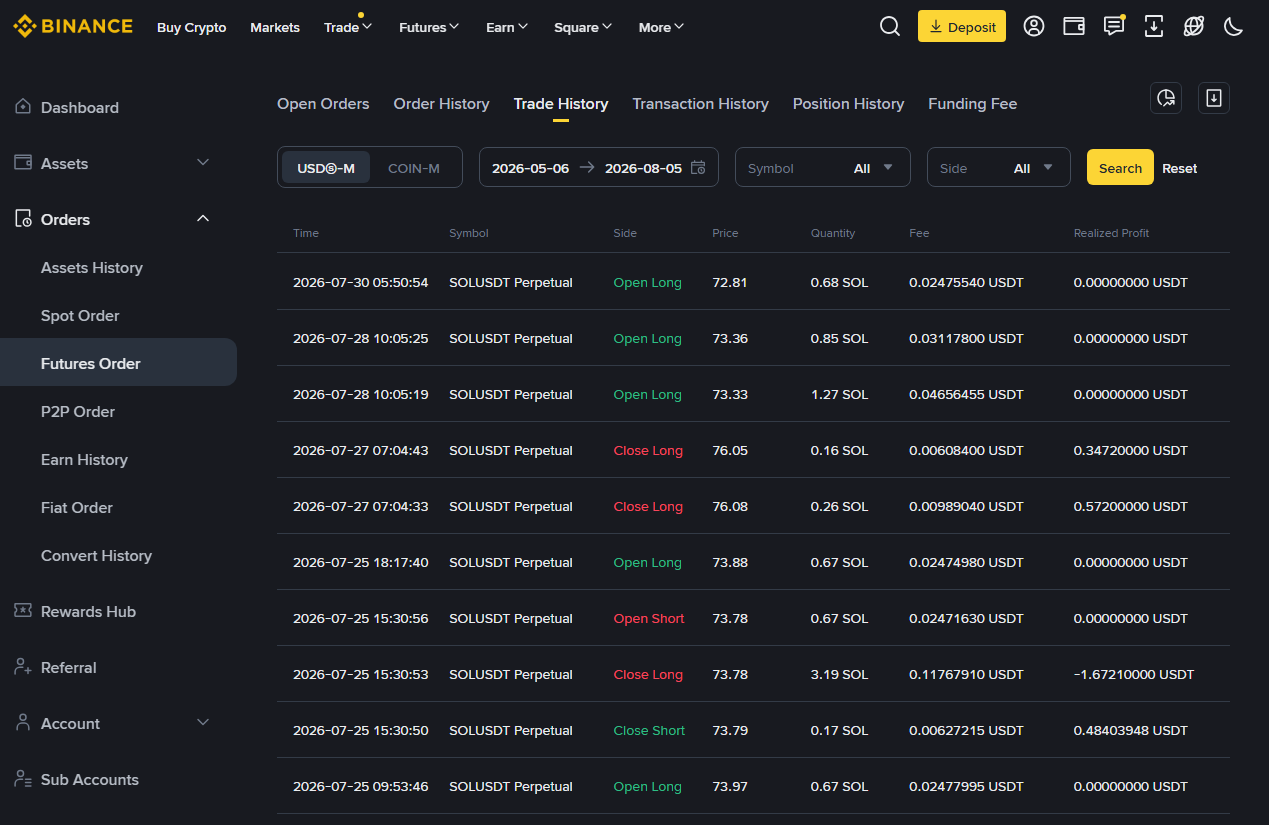
In the transaction window, select the mode the user wants to set
The automated trading program invests 24 hours a day
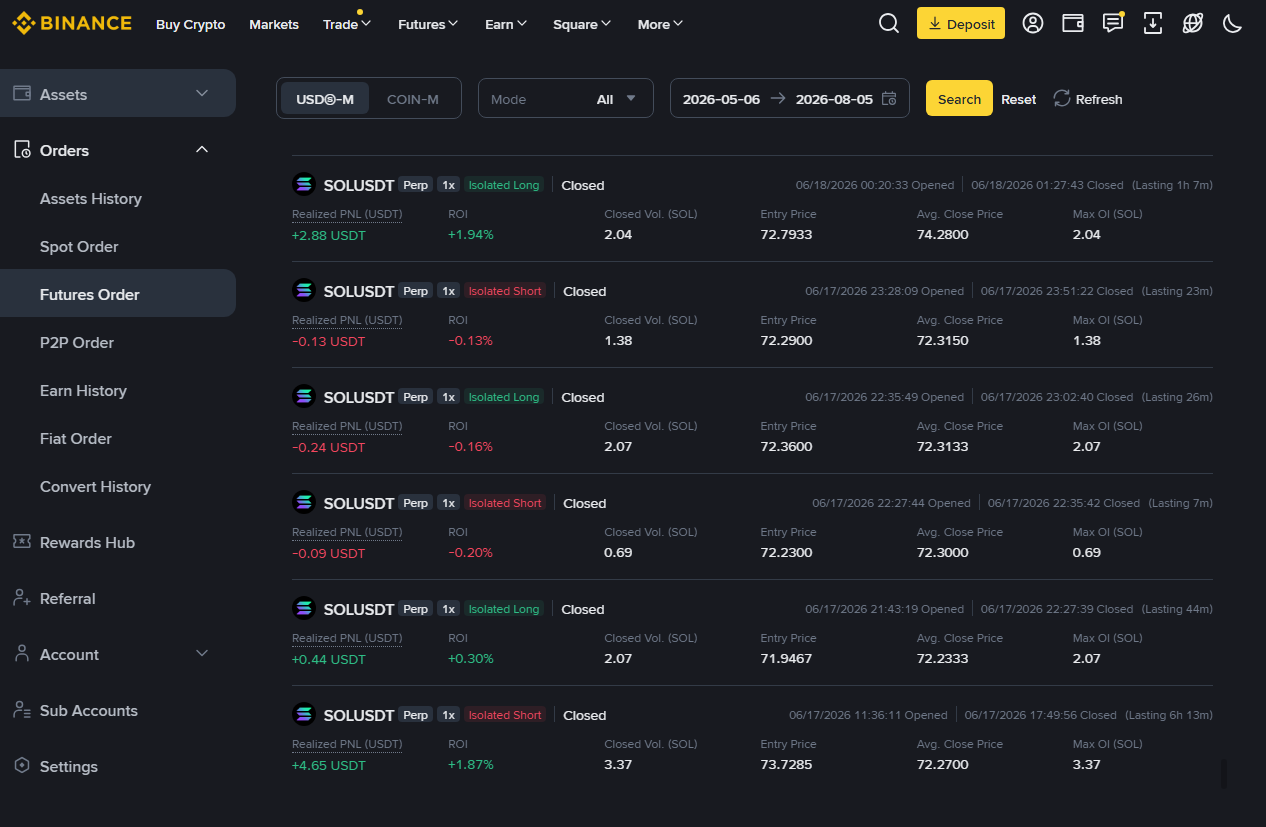
Once you enter long or short mode, the automated program makes investment decisions and operates on its own for 24 hours.